This guide covers classic Outlook for Windows.
Example domain only:
Wherever you see clientdomain.co.uk, type the domain after the @ in your own email address.
Your Small Business Email package includes a custom mail hostname and webmail URL. In this guide we will use mail.clientdomain.co.uk as a placeholder.
For example, if your email address is joebloggs@clientdomain.co.uk, your server would be mail.clientdomain.co.uk.
Before you begin
You need your full email address and mailbox password, or an app password if your account requires one for email apps. Your Windows login and Client Management Portal passwords may be different. This guide configures email only; IMAP does not add server calendars or contacts.
Connection settings for either version
| Setting | Incoming | Outgoing |
|---|---|---|
| Protocol | IMAP | SMTP |
| Server (placeholder; use your own domain) | mail.clientdomain.co.uk |
mail.clientdomain.co.uk |
| Port | 993 | 465 |
| Encryption | SSL/TLS | SSL/TLS |
| Username | Your full email address | Your full email address |
| Password | Your mailbox or app password | The same password; authentication required |
Test and troubleshoot
Send a message to another address you can access, then reply to it. Check that the message and reply appear in Outlook and that Sent items synchronise.
If sending fails, check SMTP authentication and port 465. If receiving fails, check IMAP port 993 (or if using POP3, port 995).
In classic Outlook you can do this by:
- Go to File > Account Settings > Server Settings
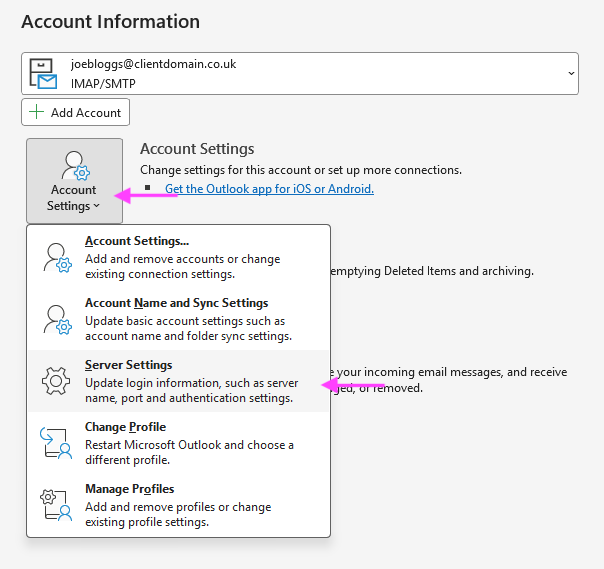
- For IMAP Account Settings > Incoming Mail check your server settings.
Check server is set to your custom hostname, the port is set to 993, encryption method SSL/TLS.
Then click on Outgoing Email and expand the outgoing settings area.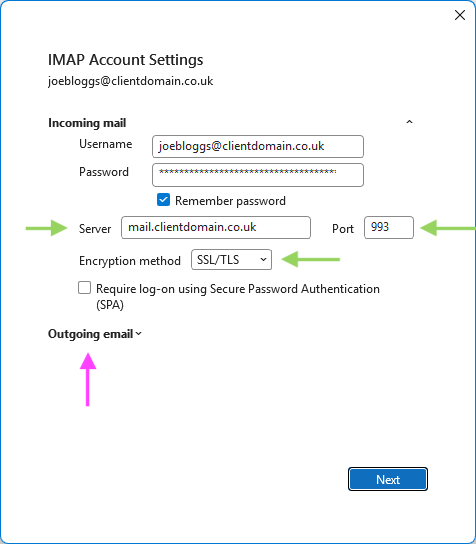
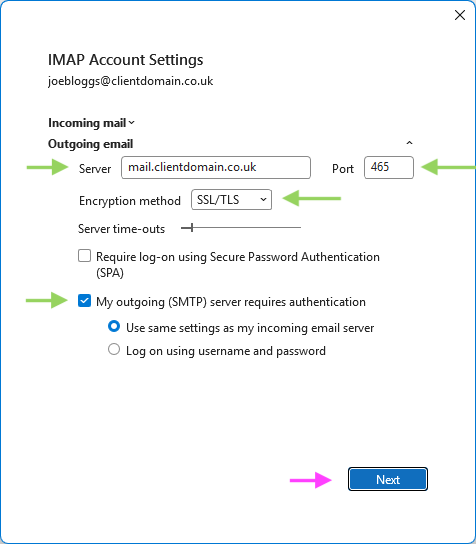
- Check outgoing server is set to your custom hostname, the port is set to 465, encryption method SSL/TLS.
Make sure My outgoing (SMTP) server requires authentication is ticked and set to Use same settings as my incoming email server.
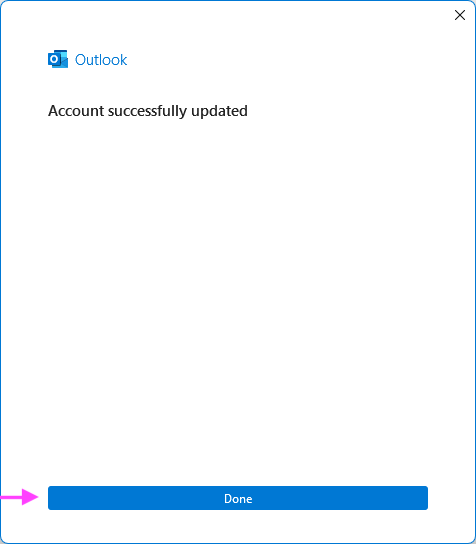
- Outlook will then test the mailbox, once complete click Done.