
Set up Small Business Email in Outlook for Windows
This guide covers new Outlook for Windows. These instructions use IMAP for incoming email and SMTP for sending, with SSL/TLS on both connections. Menu names vary by version.
Note: new Outlook does not support syncing with your Small Business Email contacts and calendars.
Example domain only:
Wherever you see clientdomain.co.uk, type the domain after the @ in your own email address.
Your Small Business Email package includes a custom mail hostname and webmail URL. In this guide we will use mail.clientdomain.co.uk as a placeholder.
For example, if your email address is joebloggs@clientdomain.co.uk, your server would be mail.clientdomain.co.uk.
Before you begin
You need your full email address and mailbox password, or an app password if your account requires one for email apps. Your Windows login and Client Management Portal passwords may be different. This guide configures email only; IMAP does not add server calendars or contacts.
Connection settings for either version
| Setting | Incoming | Outgoing |
|---|---|---|
| Protocol | IMAP | SMTP |
| Server (placeholder; use your own domain) | mail.clientdomain.co.uk |
mail.clientdomain.co.uk |
| Port | 993 | 465 |
| Encryption | SSL/TLS | SSL/TLS |
| Username | Your full email address | Your full email address |
| Password | Your mailbox or app password | The same password; authentication required |
New Outlook for Windows
- Open Settings > Accounts > Your accounts or Email accounts, then choose Add Account.
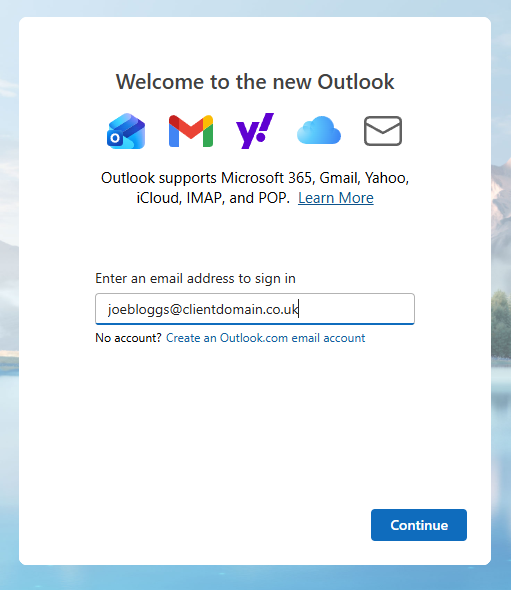
- Enter your full email address and click Continue.
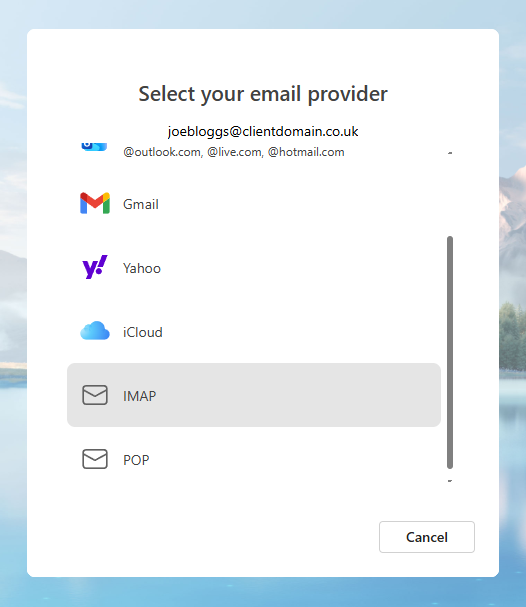
- In the Select your email provider list, select IMAP.
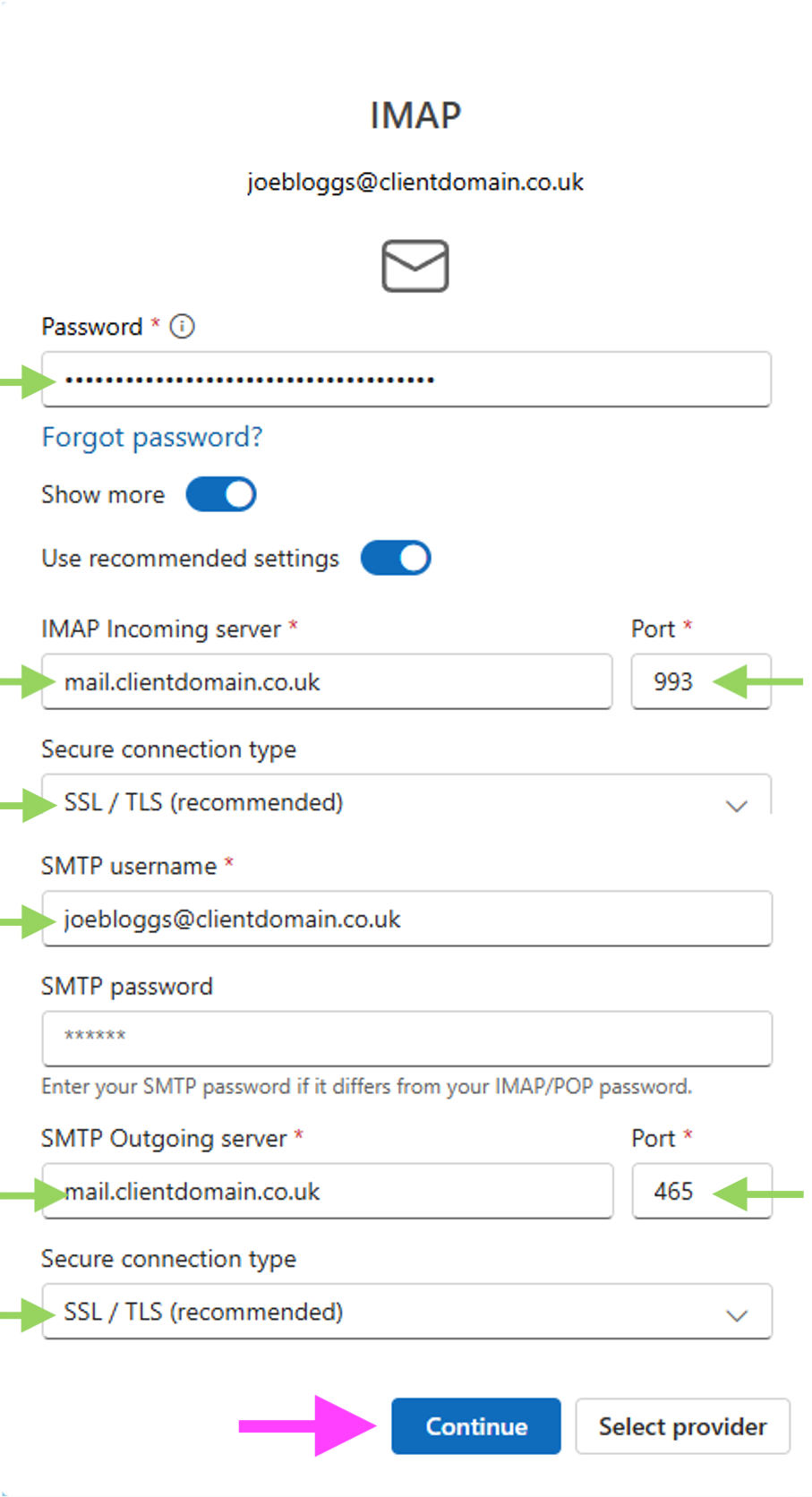
- Enter your password and then fill the details with your custom hostname, port 993 and SSL/TLS. For SMTP, Enter your custom hostname, port 465 and SSL/TLS. Click Continue.
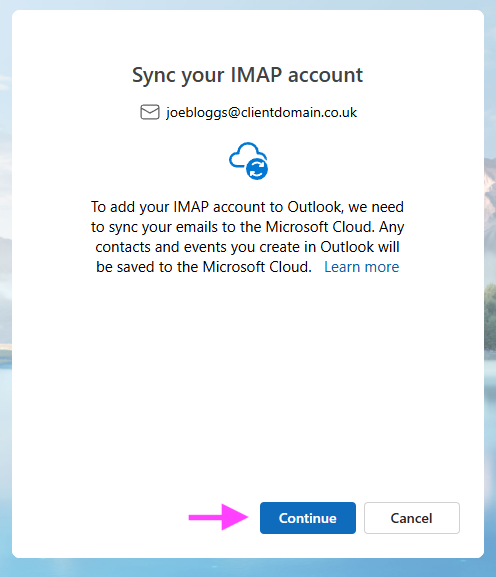
- If Outlook asks to sync the account with Microsoft Cloud, read the notice and proceed only if you agree and your organisation permits it.
If your build does not expose the necessary settings or does not complete secure setup, contact support with the version and error message. Do not disable encryption. A recognised service hostname returned by automatic discovery may differ from your domain-based hostname; confirm unfamiliar hostnames with support.
