Set up Small Business Email in Outlook for Windows
This guide covers classic Outlook for Windows. These instructions use IMAP for incoming email and SMTP for sending, with SSL/TLS on both connections. Menu names vary by version.
Example domain only:
Wherever you see clientdomain.co.uk, type the domain after the @ in your own email address.
Your Small Business Email package includes a custom mail hostname and webmail URL. In this guide we will use mail.clientdomain.co.uk as a placeholder.
For example, if your email address is joebloggs@clientdomain.co.uk, your server would be mail.clientdomain.co.uk.
Before you begin
You need your full email address and mailbox password, or an app password if your account requires one for email apps. Your Windows login and Client Management Portal passwords may be different. This guide configures email only; IMAP does not add server calendars or contacts.
Connection settings for either version
| Setting | Incoming | Outgoing |
|---|---|---|
| Protocol | IMAP | SMTP |
| Server (placeholder; use your own domain) | mail.clientdomain.co.uk |
mail.clientdomain.co.uk |
| Port | 993 | 465 |
| Encryption | SSL/TLS | SSL/TLS |
| Username | Your full email address | Your full email address |
| Password | Your mailbox or app password | The same password; authentication required |
Classic Outlook
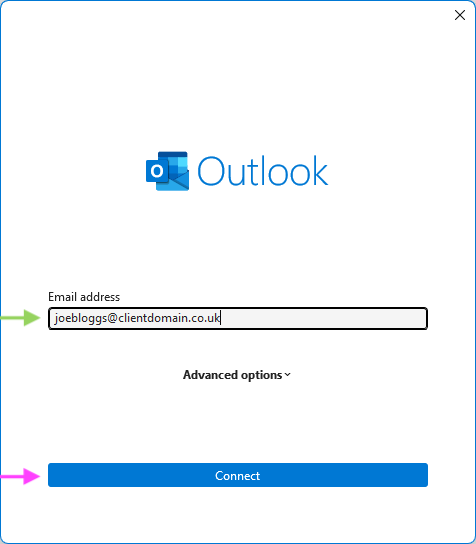
- Open File > Add Account and enter your full email address and click Connect
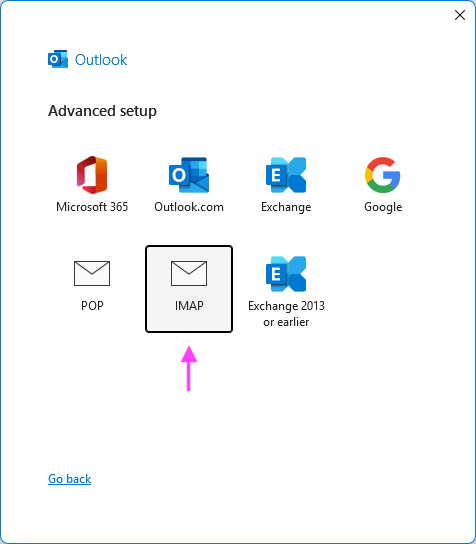
- Choose IMAP.
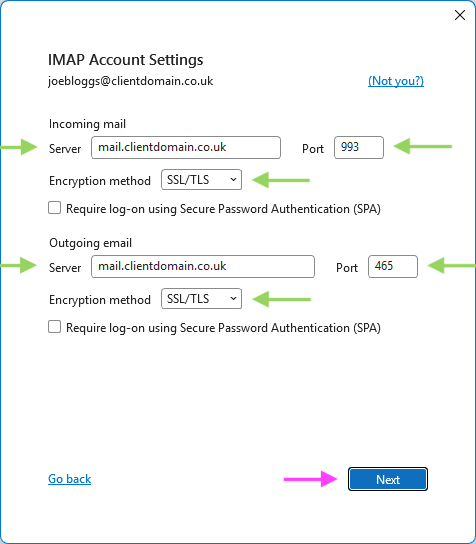
- Enter your custom incoming and outgoing mail hostname, and set incoming port 993 with SSL/TLS, and outgoing port 465 with SSL/TLS. Leave Require logon using Secure Password Authentication (SPA) unchecked if shown.
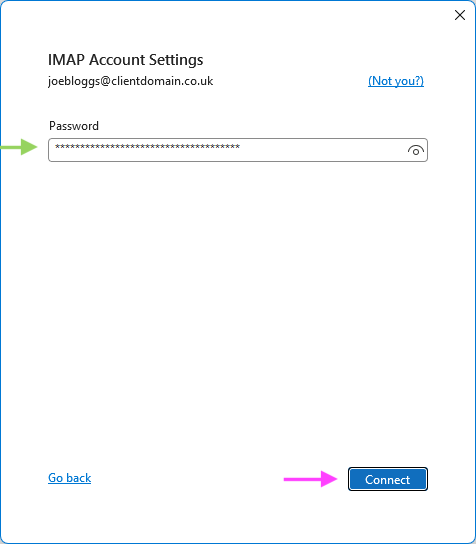
- Click Next, enter your mailbox or app password and click Connect.