
Set up Small Business Email in the Gmail app on Android using ActiveSync
These instructions add your Small Business Email mailbox, contacts, and calendars to the Gmail app on an Android phone or tablet using ActiveSync. They do not move your mailbox to Google or configure Gmail in a web browser. Labels may vary by app version.
Example domain only:
Wherever you see clientdomain.co.uk, type the domain after the @ in your own email address.
Your Small Business Email package includes a custom mail hostname and webmail URL. In this guide we will use mail.clientdomain.co.uk as a placeholder.
For example, if your email address is joebloggs@clientdomain.co.uk, your server would be mail.clientdomain.co.uk.
Before you begin
Have your full email address and mailbox password ready. If your account requires an app password for email apps, use that instead. Your Google and Client Management Portal passwords may be different. This IMAP setup synchronises email, not server calendars or contacts.
Add your account
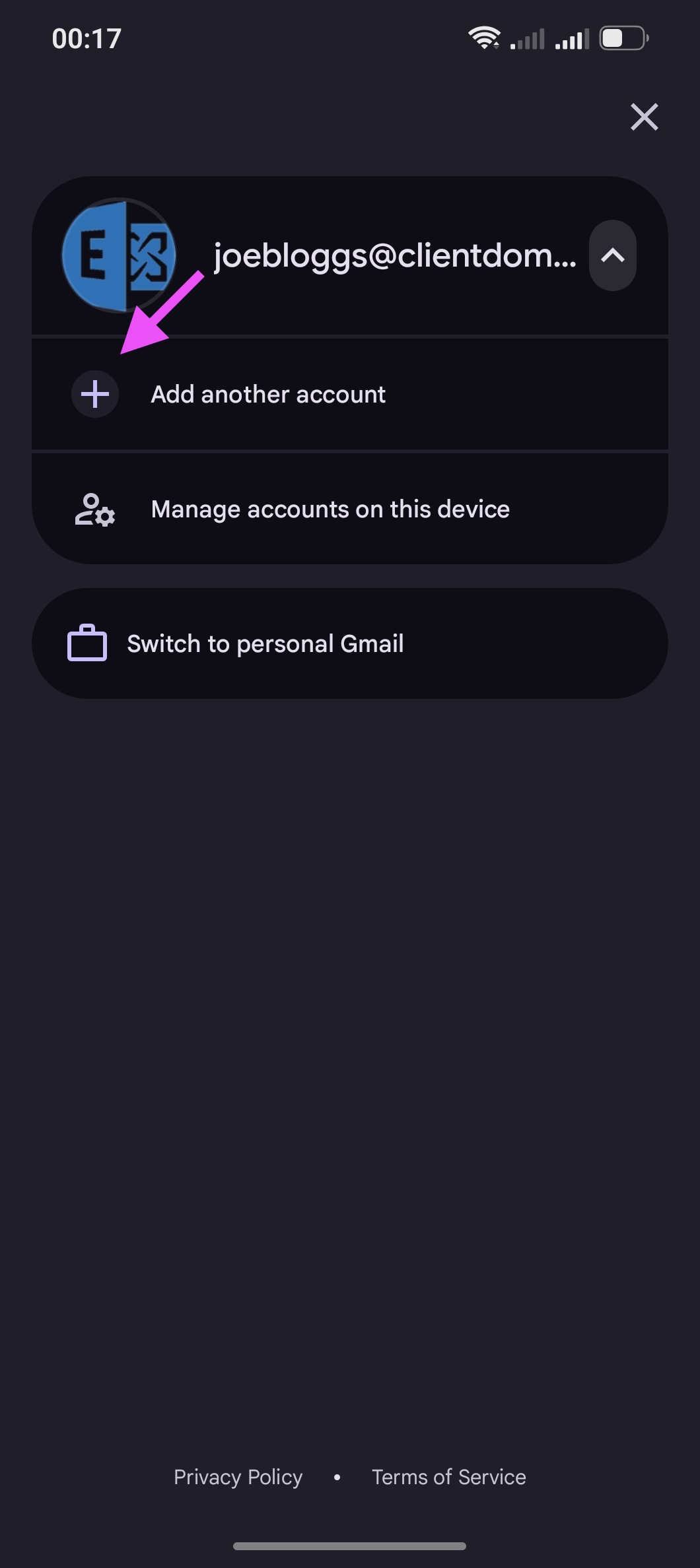
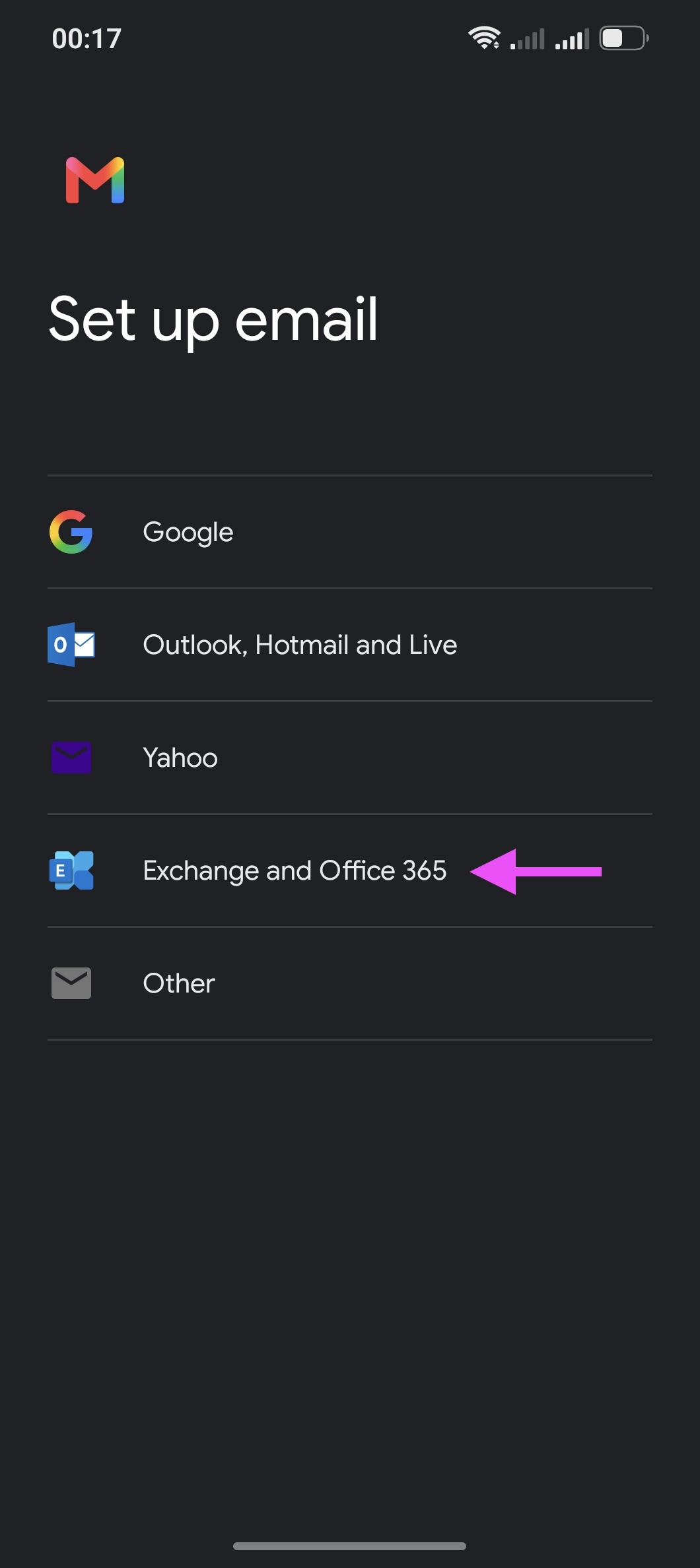
- Open Gmail, tap your profile picture or initial at the top right and select Add another account. Then tap Exchange and Office 365.
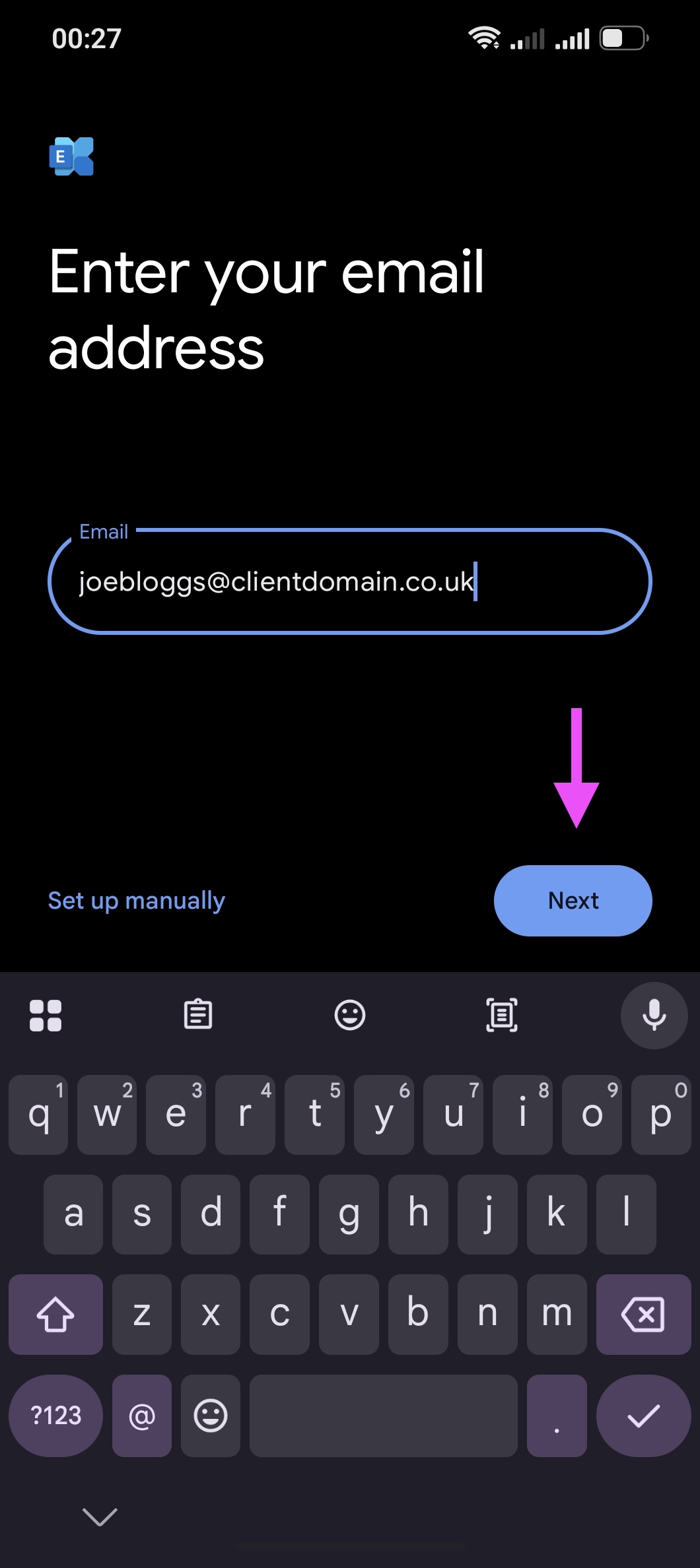
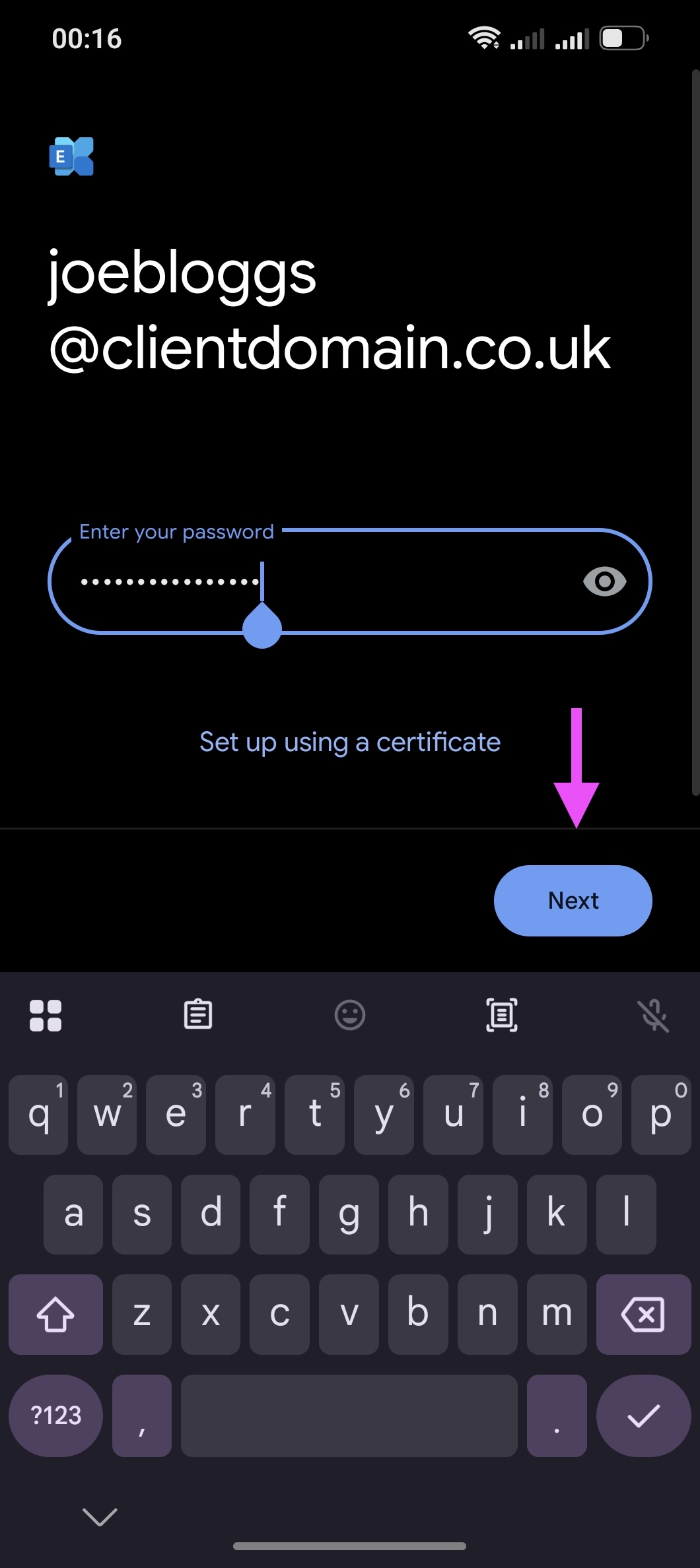
- Enter your full Small Business Email address and then your mailbox or app password and tap Next, then Done.
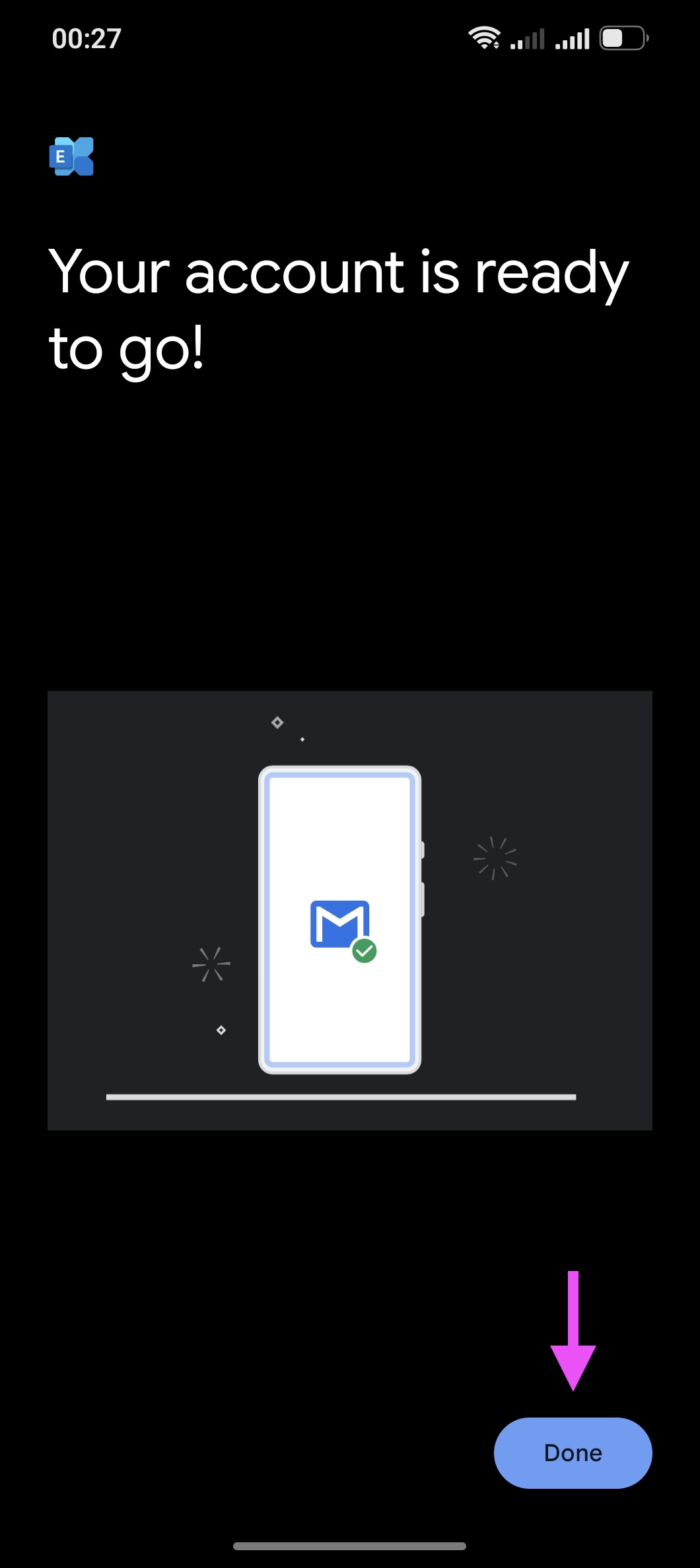
If Gmail will not let you apply the required secure settings, contact support. Do not select an unencrypted connection or bypass a certificate warning.
Test and troubleshoot
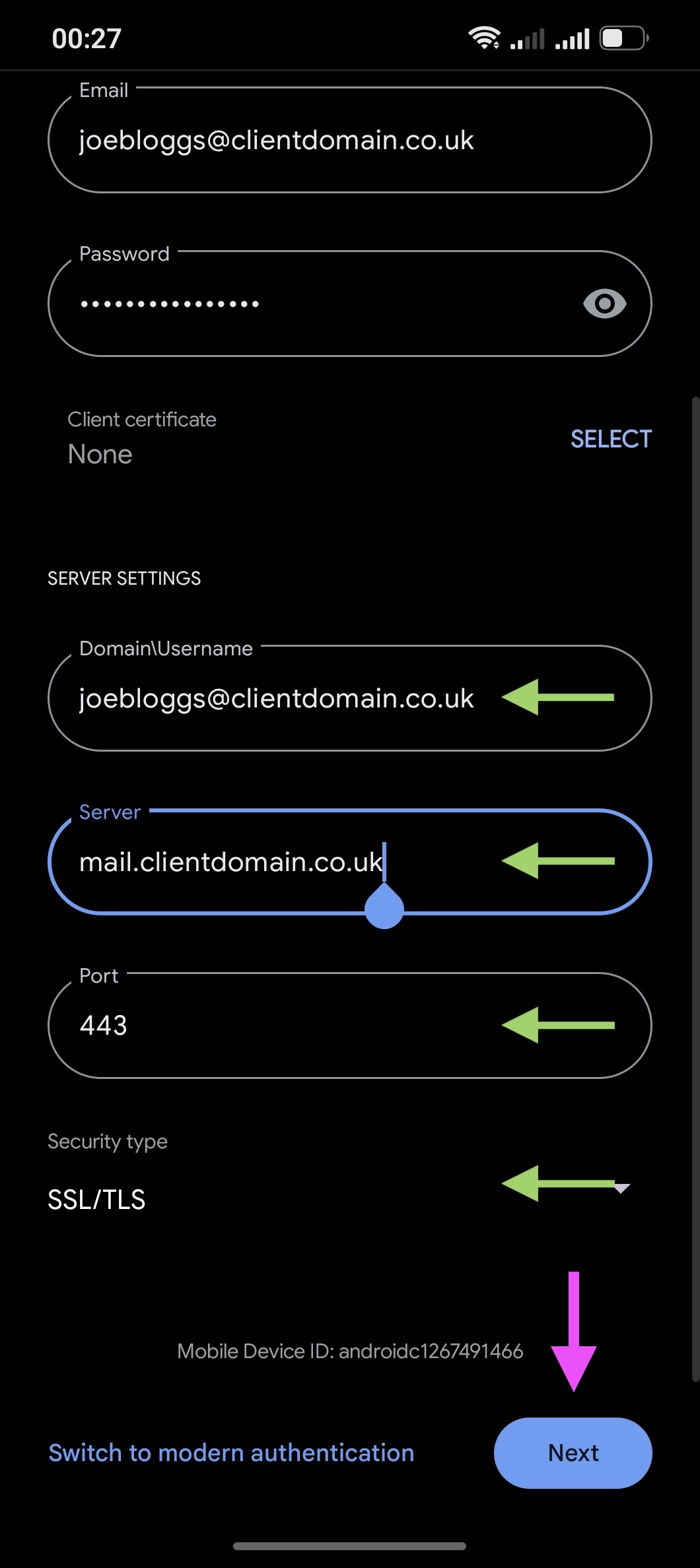
If you need to use manual mode match the following settings with your email/custom mail hostname
Domain\Username: joebloggs@clientdomain.co.uk
Server: mail.clientdomain.co.uk
Port: 443
Security Type: SSL/TLS
Send a message to another address you can access, then reply to it. If new messages do not appear, check that Sync Gmail is enabled for this account and that Android permits the app to use data.
Back up messages stored only on your device before removing an existing account. Contact us through the Client Management Portal with your Android version and error message. Never send your password.
