
The below article will take you through the process of updating your contact details for your Small Business Hosting account.
Step 1) Login to the Client Management Portal with your current email address and password at https://www.smallbusiness.host/clients/
Step 2) On the left hand side there will be a 'Your Info' box that displays your current address, click the green '✏️ Update' button.
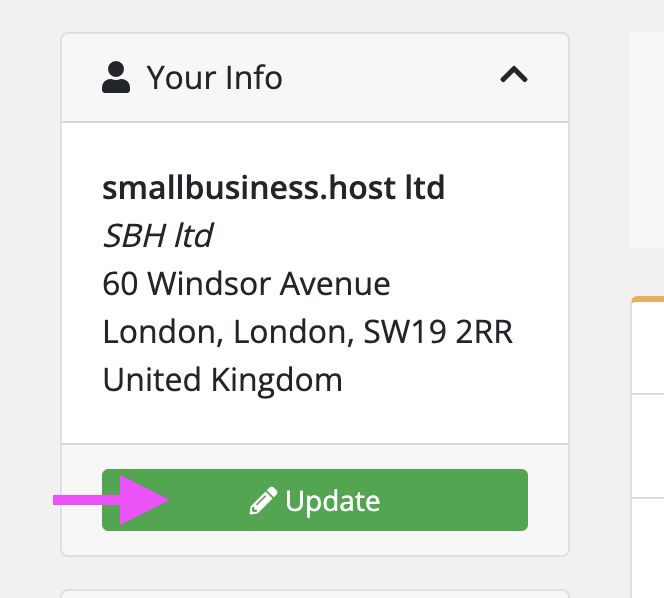
Step 3) Enter your updated details and then click on 'Save Changes'.
Step 4) In the "Account" menu on the left, click the 'Contacts' button
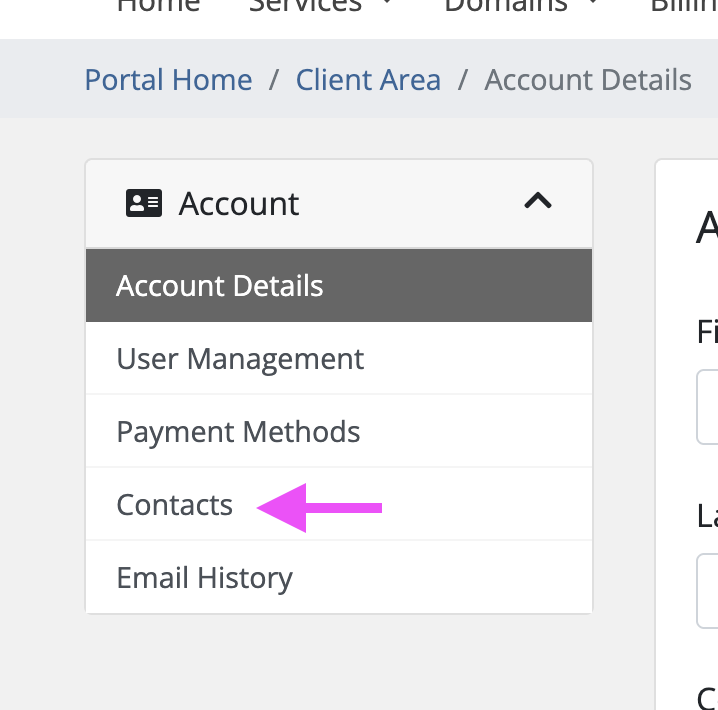
Step 5) Again enter your updated details and then click on 'Save Changes'.
Once your changes have been saved your account will now be updated with your new information. Please note that if you updated your email address then you will now need to use your new email address to login to your Client Management Portal. This is also the email address that the system will send invoices to and also use for any support tickets.
If you run into any issues updating your contact details then please create a support ticket via your Client Portal.
