
Download and install a Small Business Email profile on iPhone
A connection profile can add your Small Business Email mailbox to Apple's Mail app on iPhone in a few taps. A combined profile can also add calendars and contacts to Apple's Calendar and Contacts apps. It does not configure Outlook or other third-party email apps.
Example domain only:
Wherever you see clientdomain.co.uk, type the domain after the @ in your own email address.
Your Small Business Email package includes a custom mail hostname and webmail URL. In this guide we will use mail.clientdomain.co.uk as a placeholder.
For example, if your email address is joebloggs@clientdomain.co.uk, your server would be mail.clientdomain.co.uk, and your webmail link would be https://mail.clientdomain.co.uk.
Before you begin
Have your full email address and mailbox password ready.
Download your profile
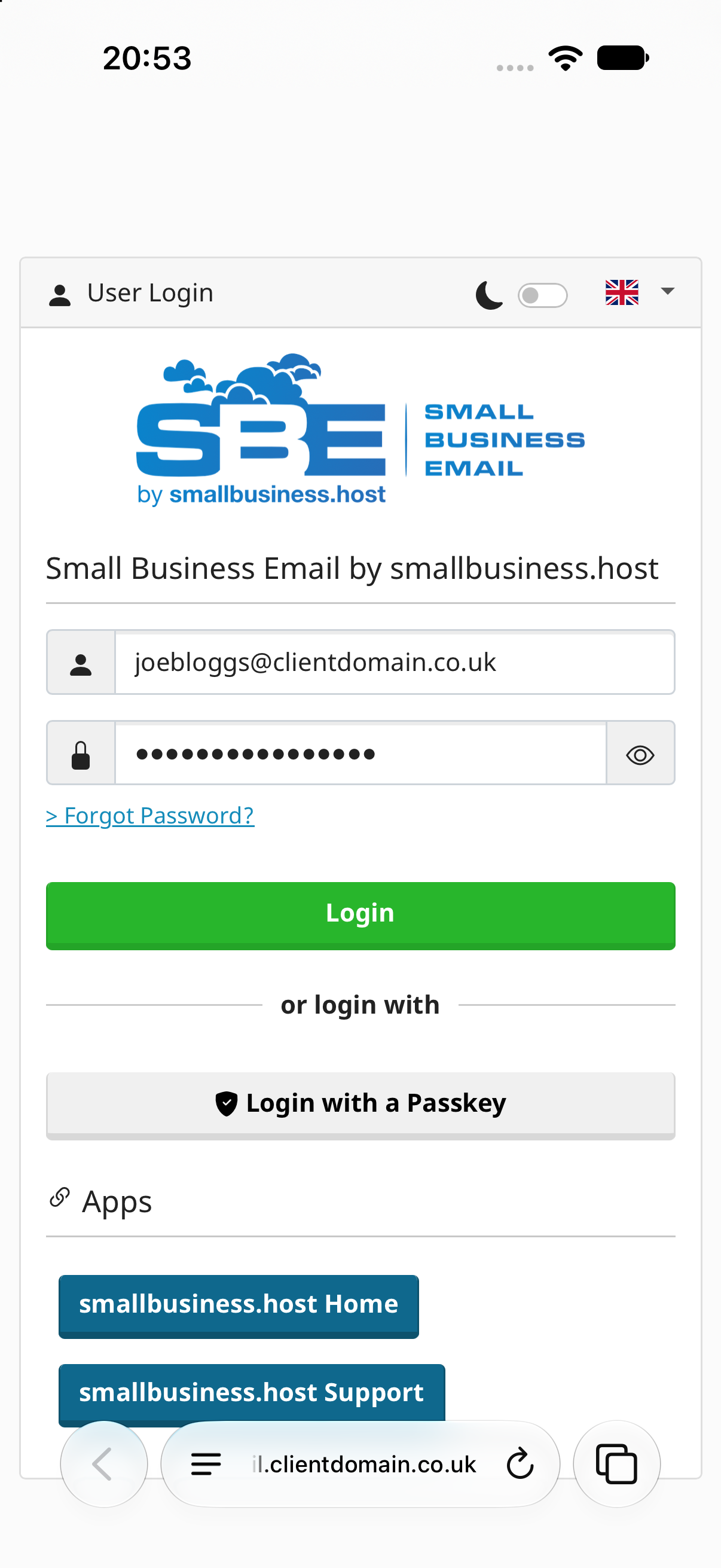
- Open Safari and go to your Small Business Email webmail interface and sign in.
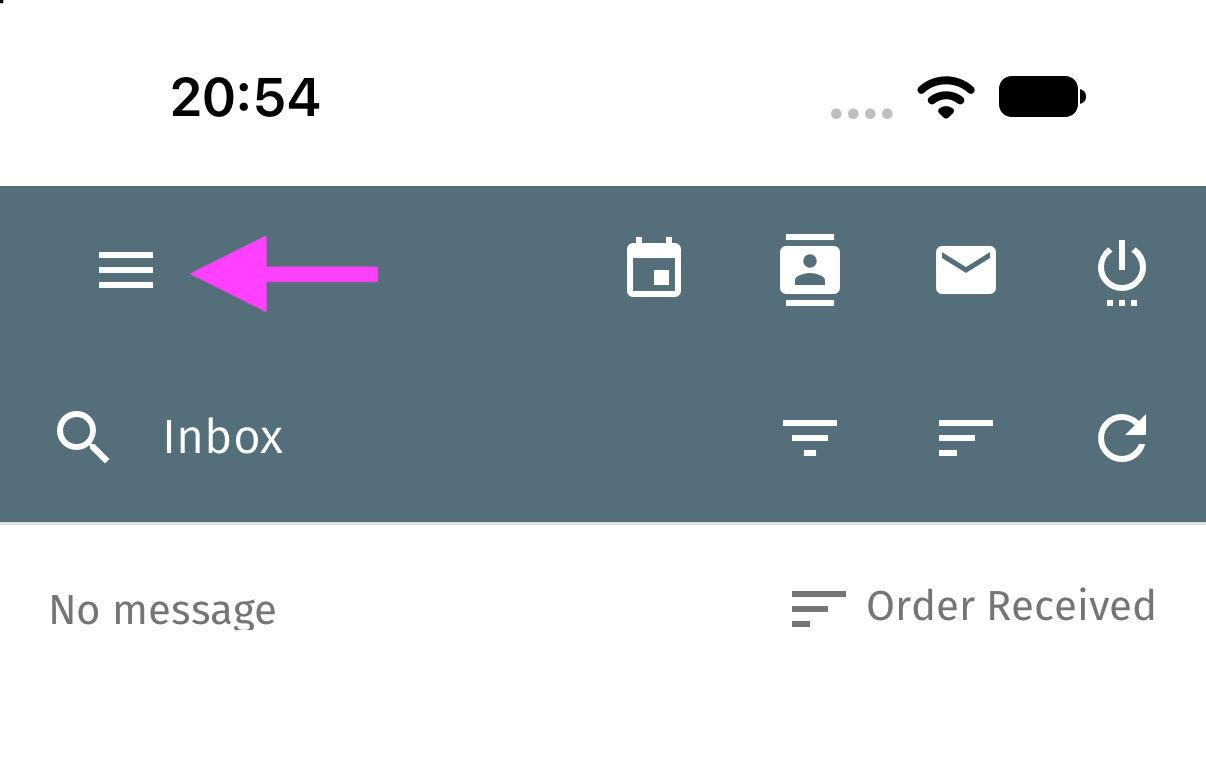
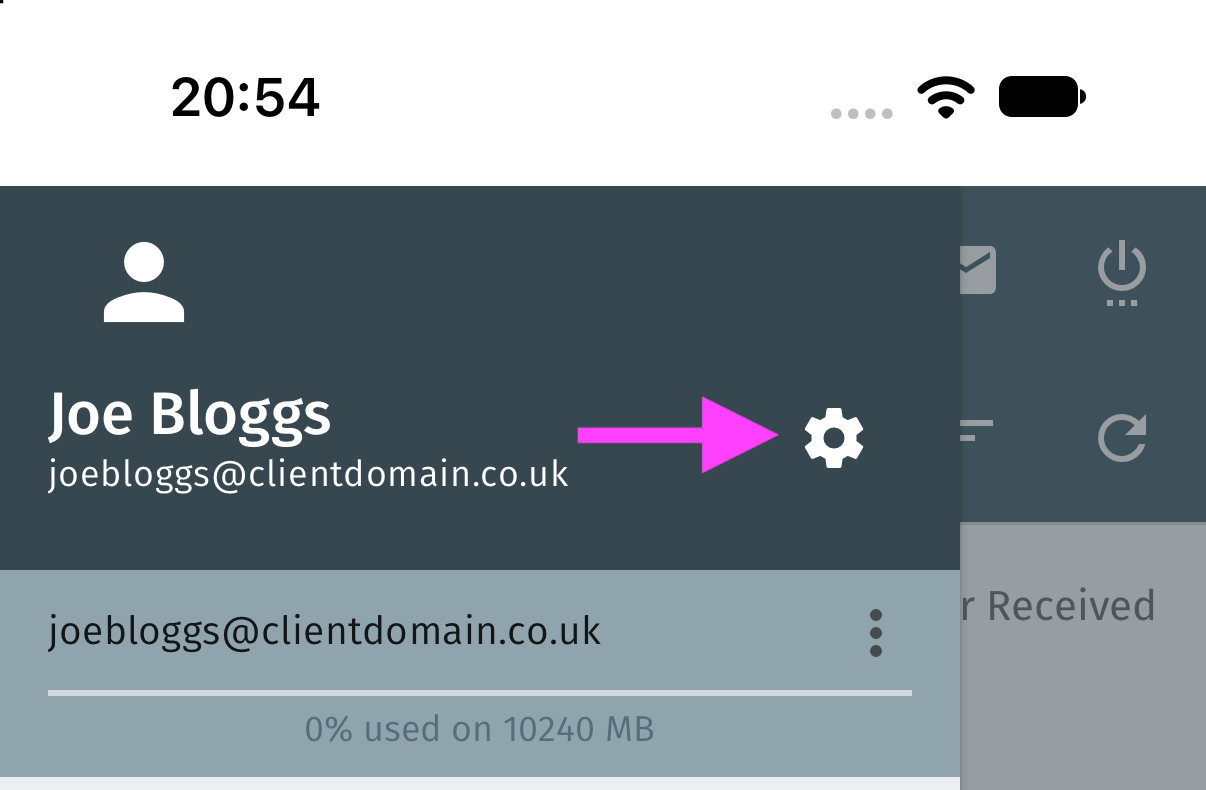
- Tap the 3 lines, then the preferences cog icon in the top left of the page
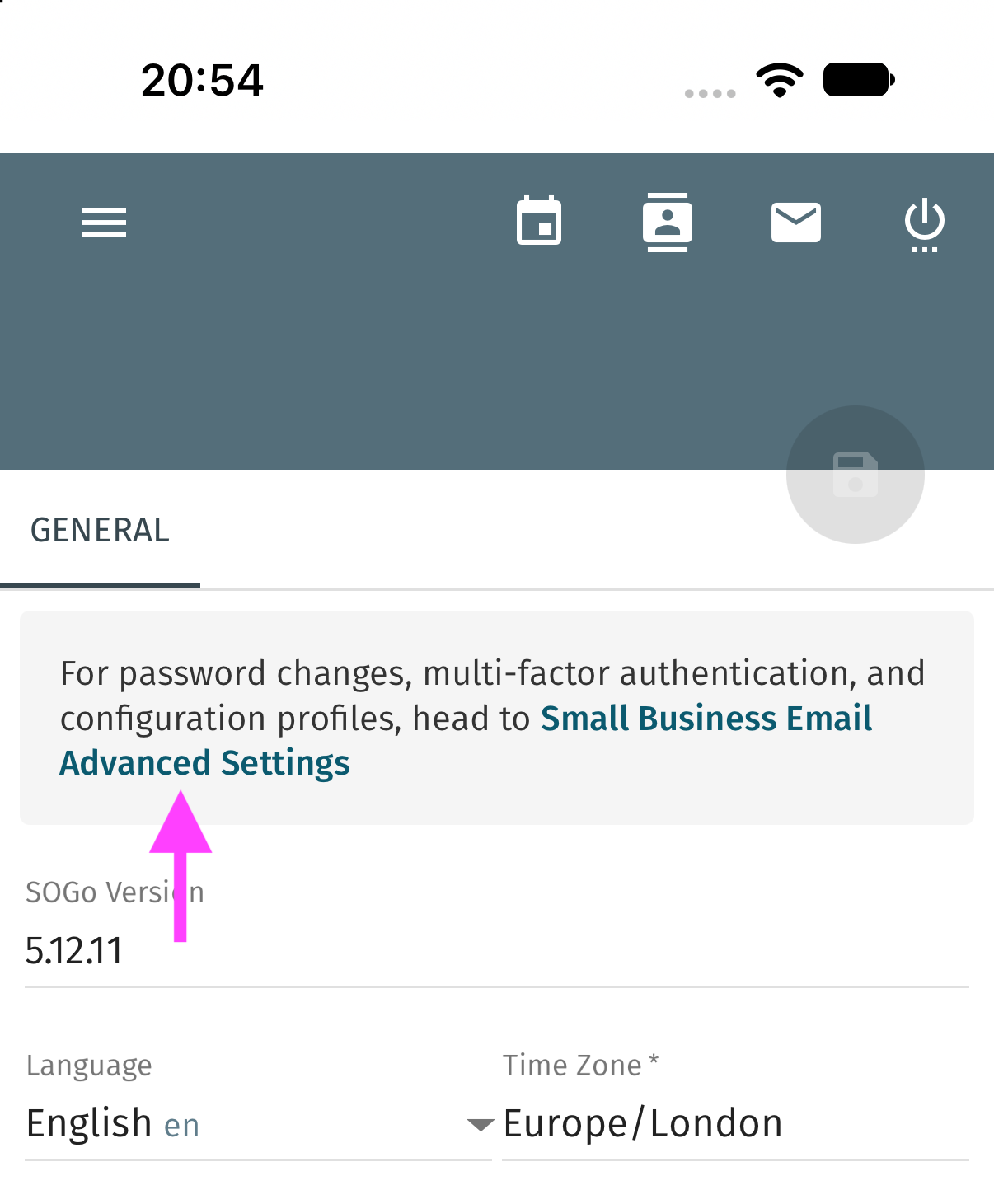
- Tap the link to go to Small Business Email Advanced Settings
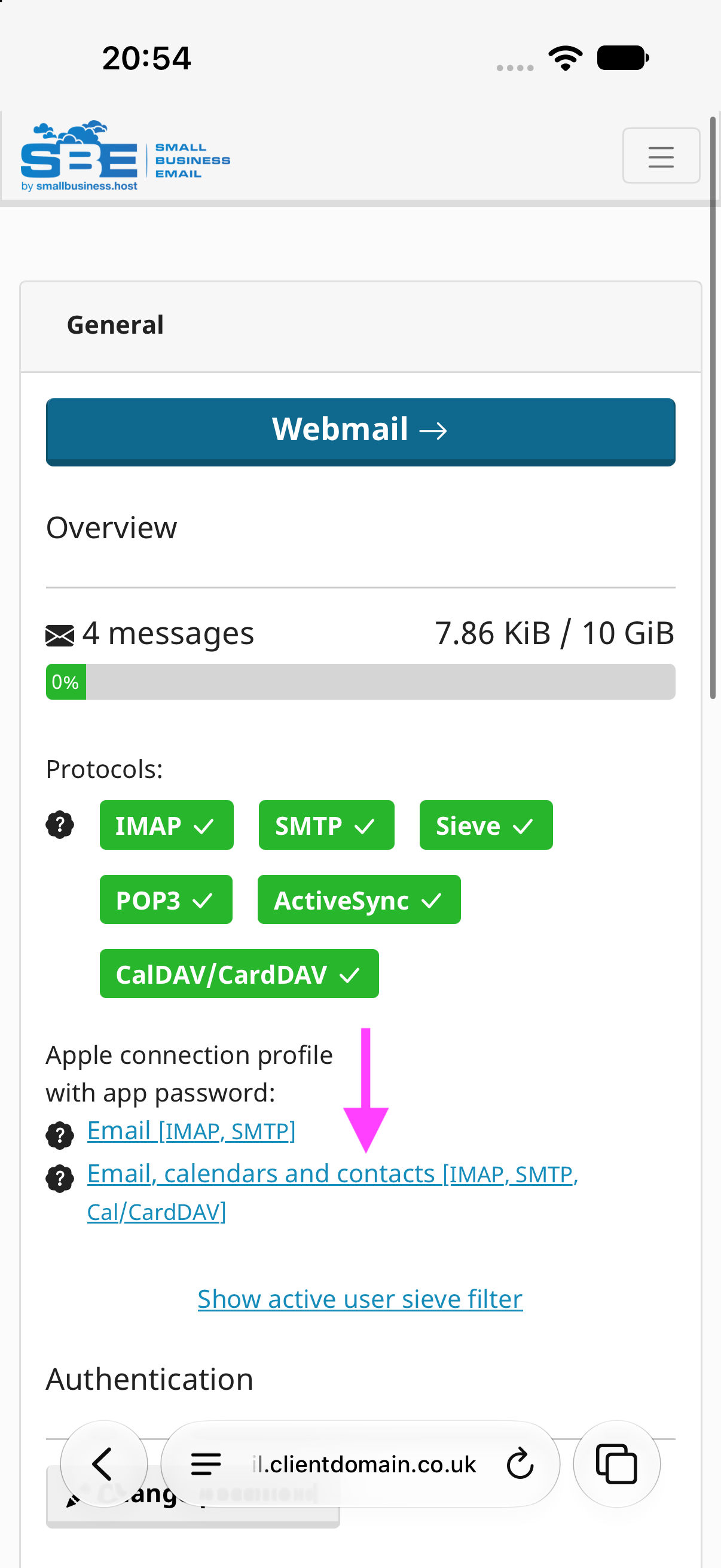
- Tap General then tap the link to download the appropriate Apple connection profile. You can choose either:
Email [IMAP, SMTP] - this option will only sync email to your iPhone
Email, contacts, and calendars [IMAP, SMTP, Cal/CardDAV] (Recommended) - this option will allow you to sync your webmail contacts and calendars with your iPhone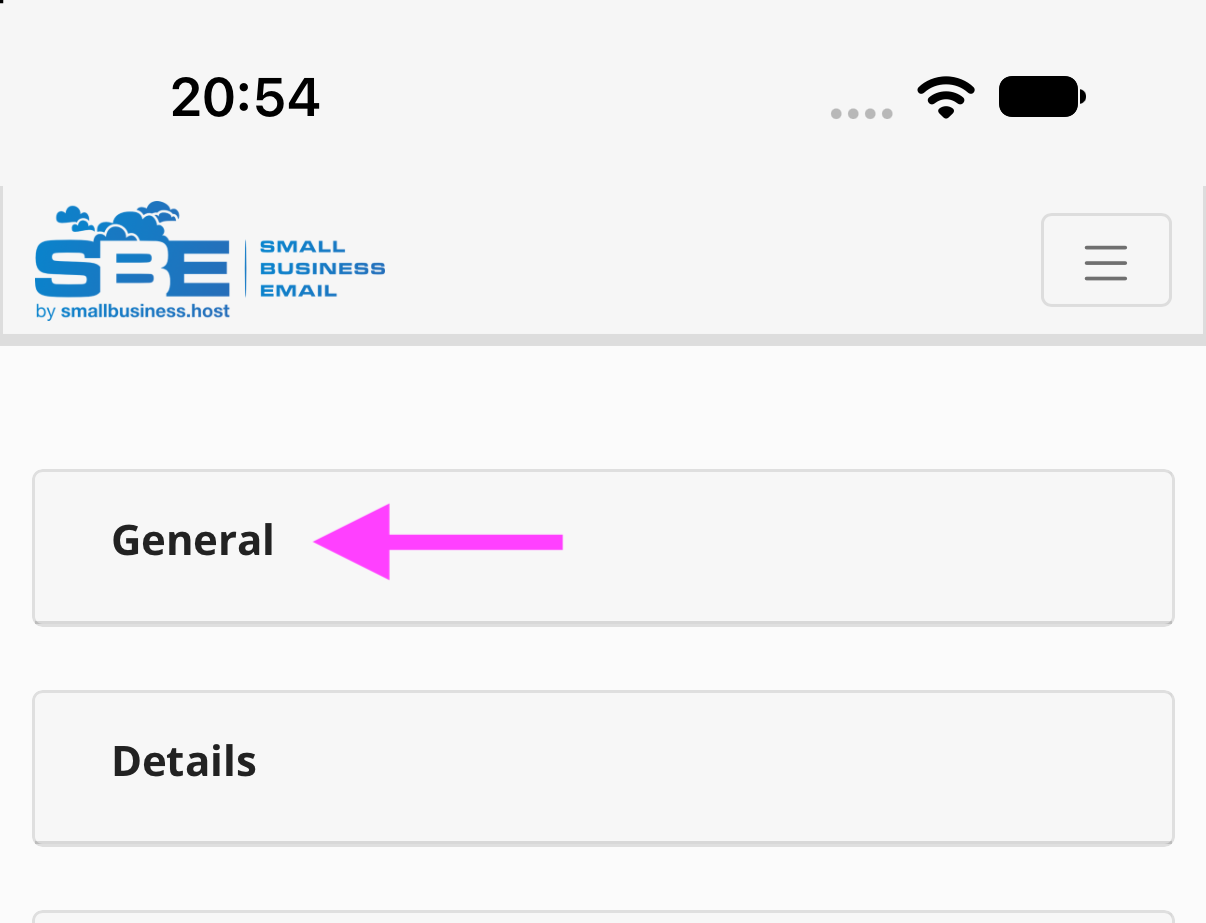
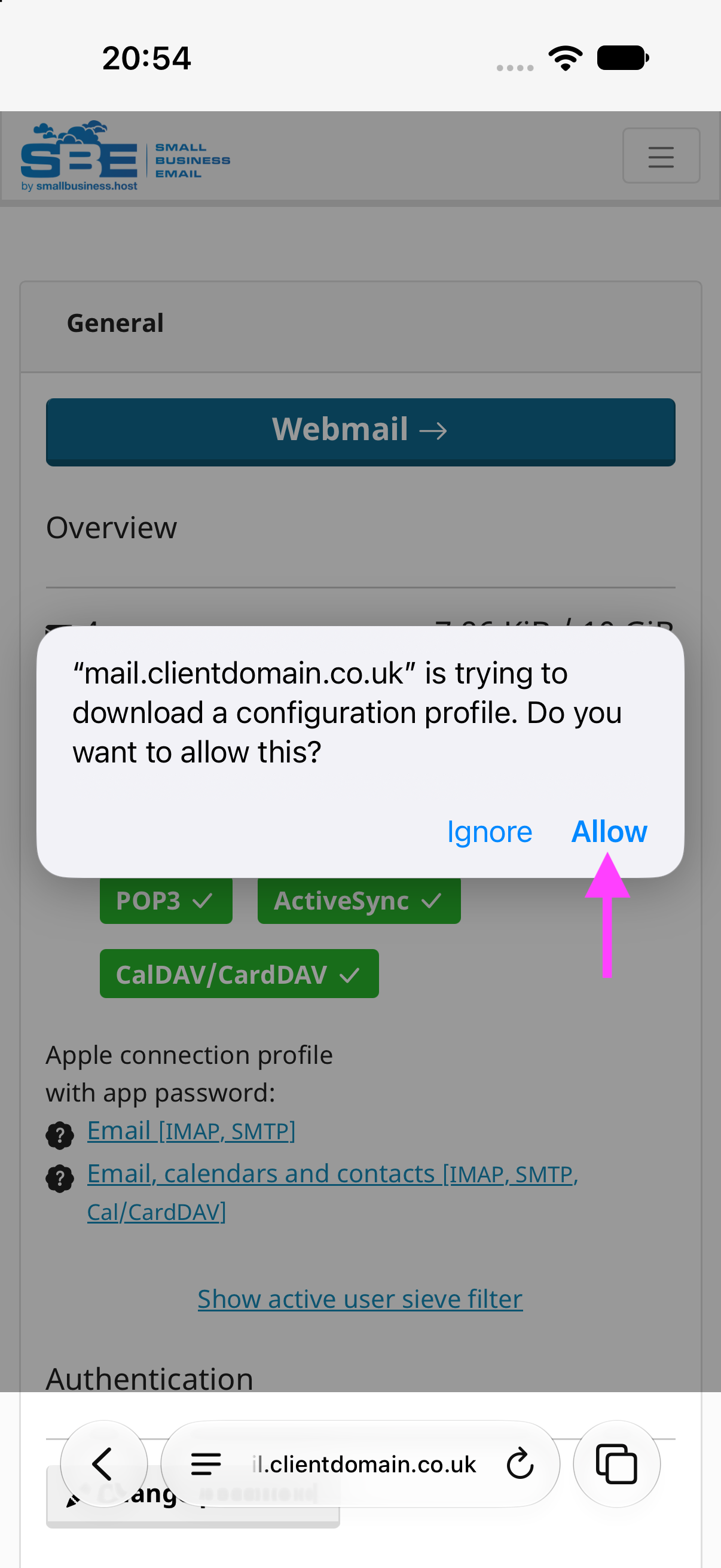
- If Safari asks permission to download a configuration profile, tap Allow. A download alone does not install the account.
You will get this notice, tap Close.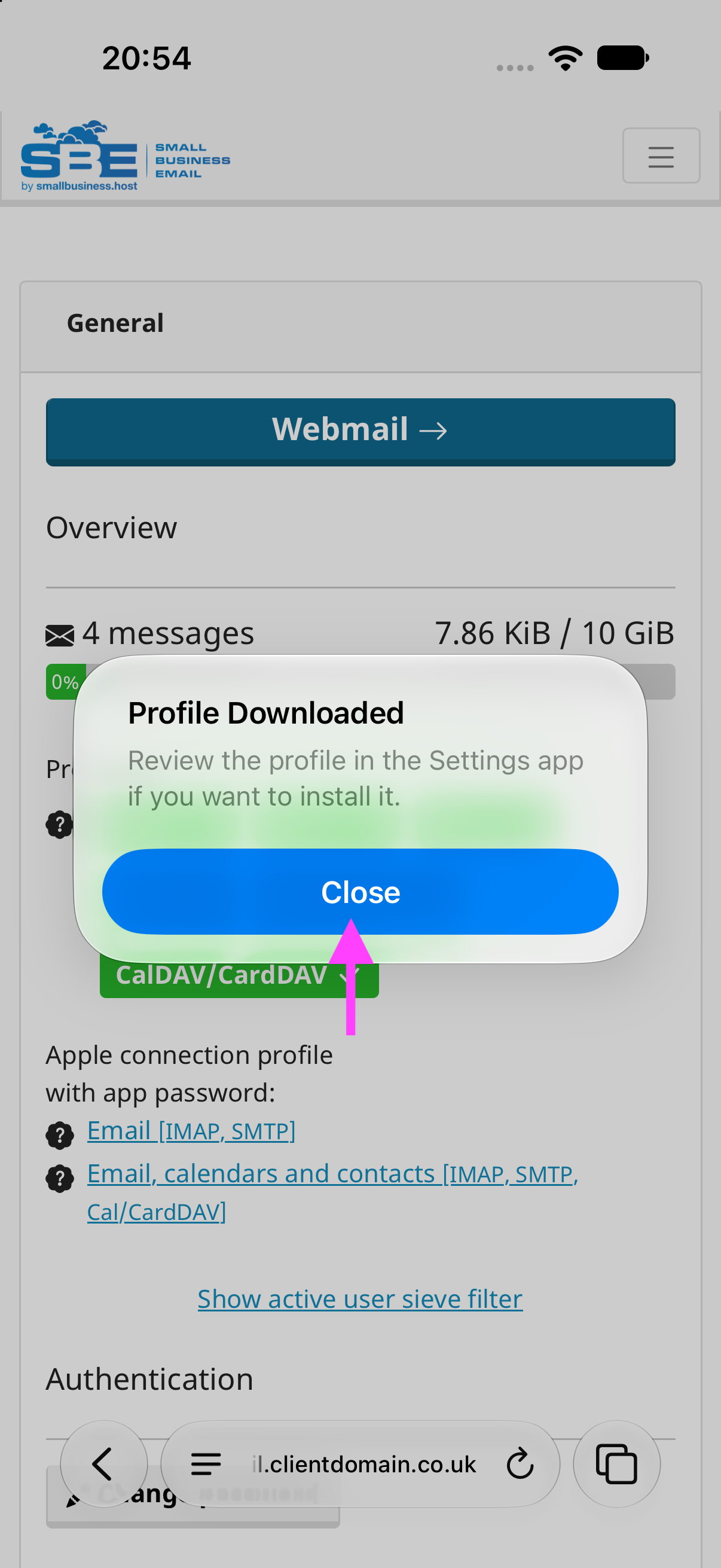
Review and install
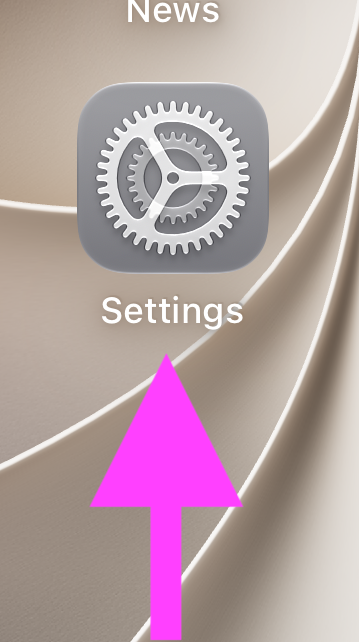
- Open the Settings app
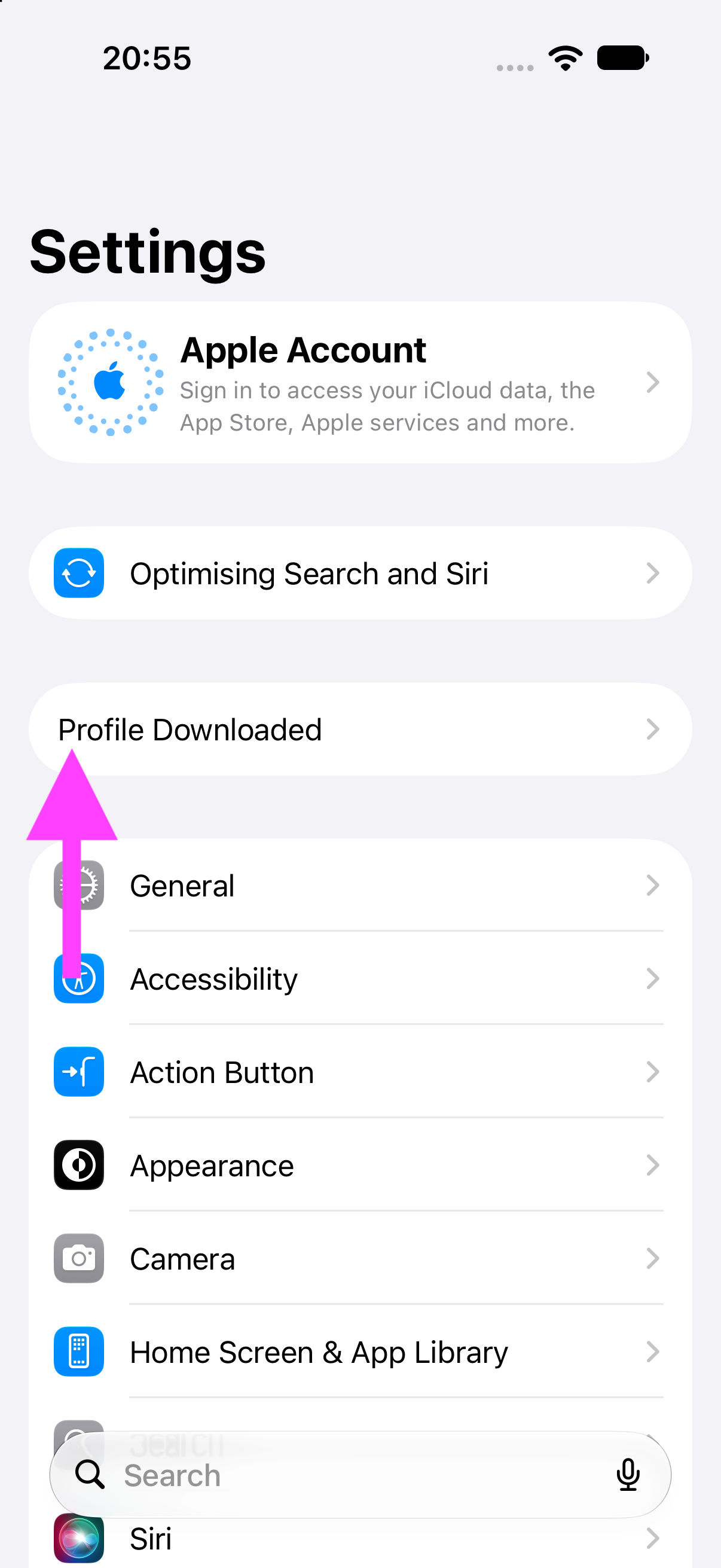
- Tap Profile Downloaded
- Check the profile name is Small Business Email by Small Business Host, and optionally tap on Accounts and check that the server matches
mail.clientdomain.co.uk, (or a server name including smallbusiness.email or sbhdns.com is also acceptable) then tap Install.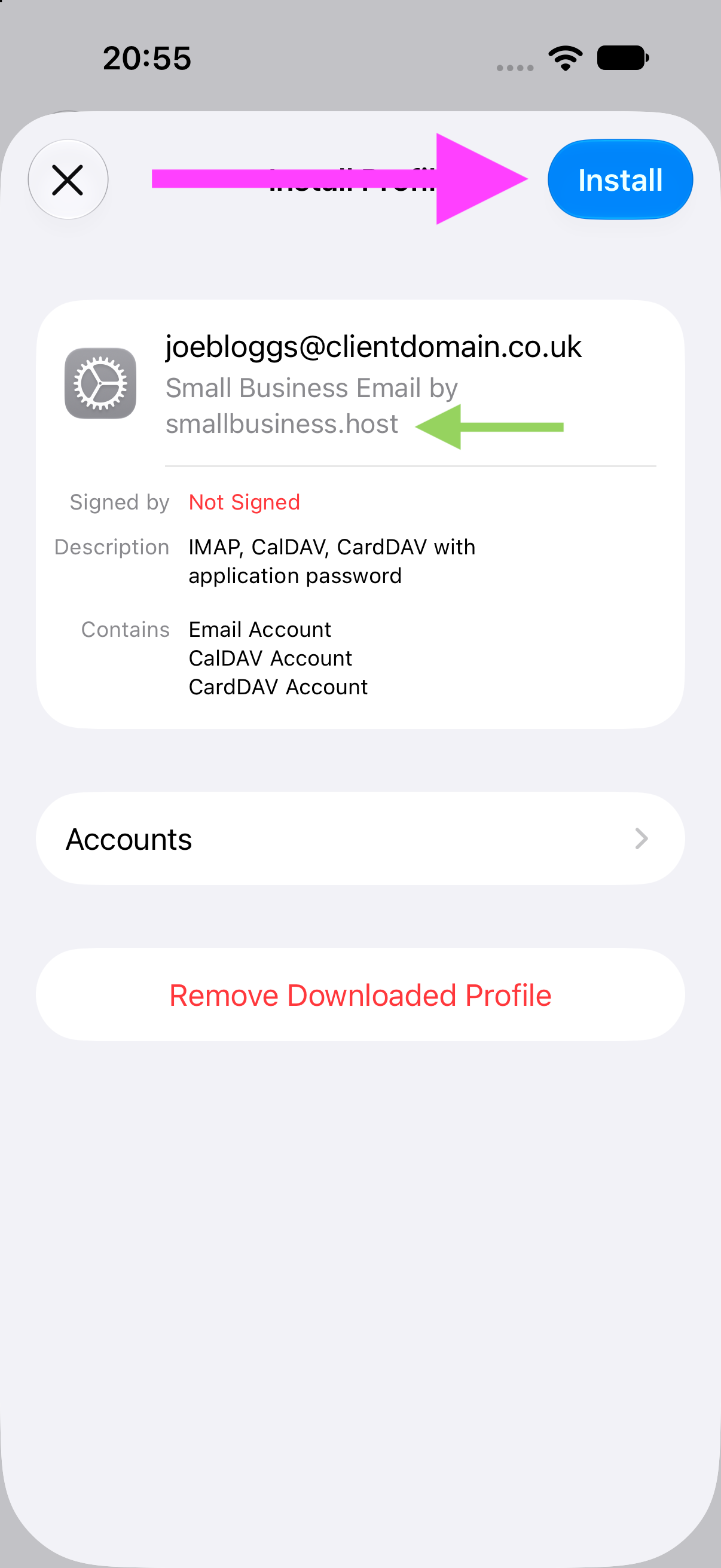
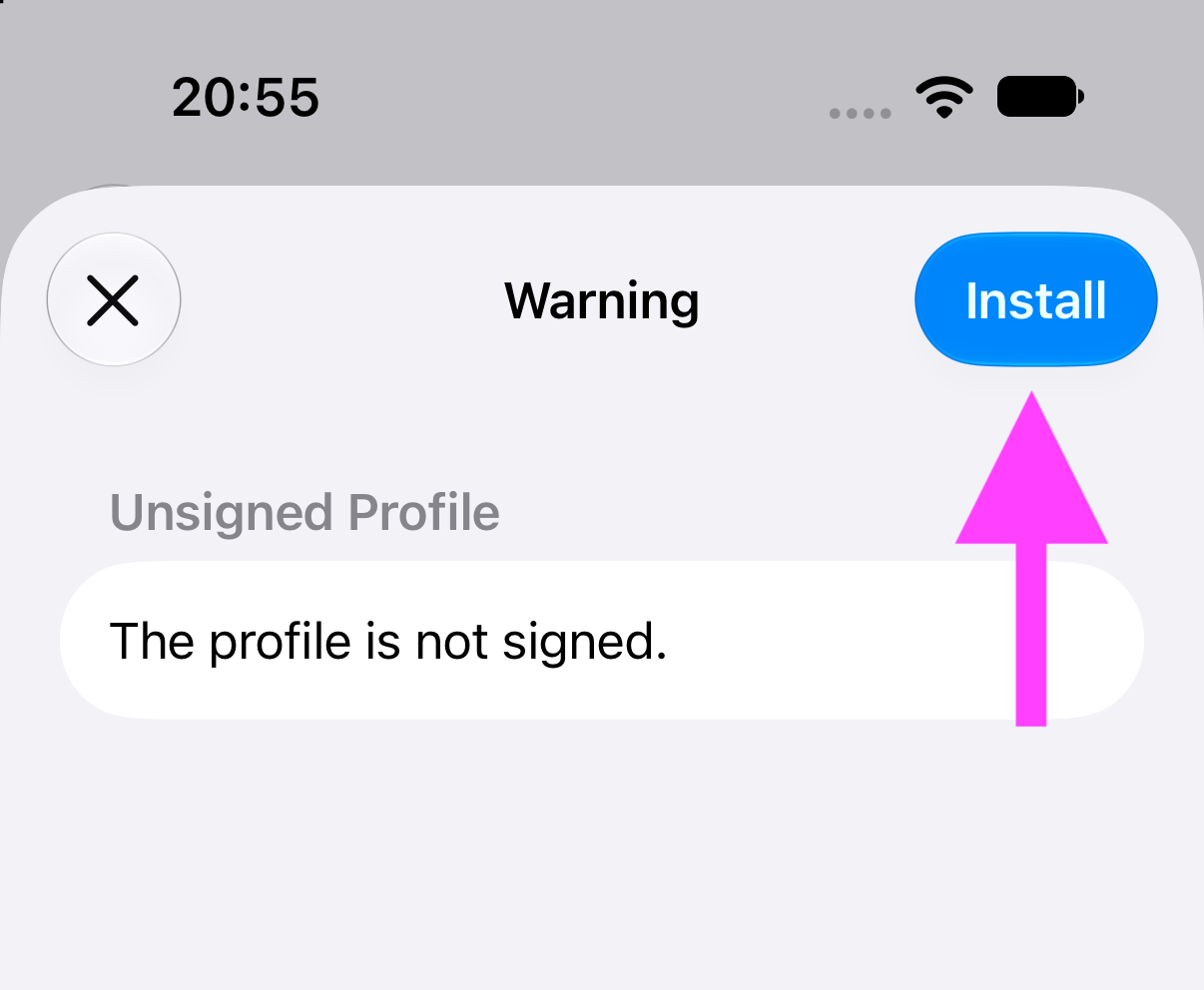
Stop if it contains unexpected settings, device-management enrolment or a request to trust a root certificate. - On the Unsigned Profile Warning tap Install. Tap Install again.
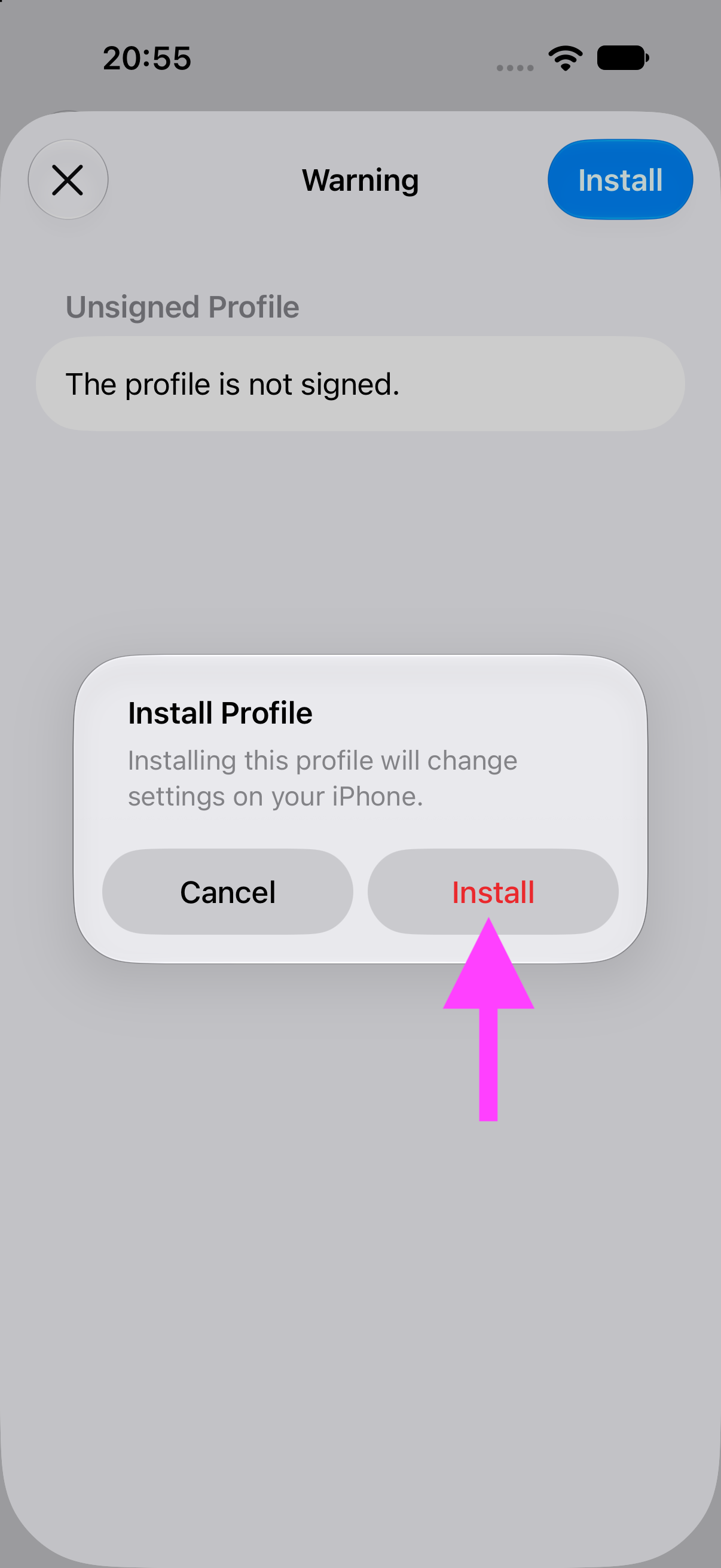
If a workplace policy prevents installation, contact your device administrator or support. Do not change management or security settings to force installation.
Verify the account
Open Settings > Apps > Mail > Accounts > your account > Server Settings. Where visible, confirm incoming IMAP port 993, outgoing SMTP port 465, Use TLS/SSL enabled for both, and password authentication with your full email address. If profile-managed values differ or cannot be inspected, contact support to check the profile before using the account. Do not modify the downloaded profile to bypass managed settings.
Open Mail, send a message to another address you can access and reply to it. If you installed the combined profile, check that the account appears in Calendar and Contacts too. Do not bypass certificate warnings or turn off encryption.
Remove or replace a profile
Return to Settings > General > VPN & Device Management or Profiles, select the relevant profile and choose the Remove Profile button. Removing it removes the accounts and settings it installed from this iPhone, not the server mailbox; unsynchronised local data may be lost.
Contact us through the Client Management Portal with your iOS version and error message. Never send your password or a profile containing credentials.
