
Set up Small Business Email in Apple Mail on iPad
Add your Small Business Email mailbox to the built-in Mail app on iPadOS using IMAP and SSL/TLS. Menu labels vary between iPadOS versions.
Please note
For Apple devices, we highly recommend using Apple connection profiles. They allow for easy syncing of Email, Contacts, and Calendars and the setup process is much easier.
See here for more details: https://www.smallbusiness.host/clients/knowledgebase/30/Easy-Setup-Guides
Example domain only
Wherever you see clientdomain.co.uk, type the domain after the @ in your own email address.
Your Small Business Email package includes a custom mail hostname and webmail URL. In this guide we will use mail.clientdomain.co.uk as a placeholder.
For example, if your email address is joebloggs@clientdomain.co.uk, your server would be mail.clientdomain.co.uk.
Before you begin
You need your full email address and mailbox password, or an app password if your account requires one for email apps. This is not your iPad passcode or necessarily your Client Management Portal password. Do not add a second copy if a configuration profile already manages the mailbox.
Add the account
- Open Settings then using the search bar, search for Account and tap Add Account
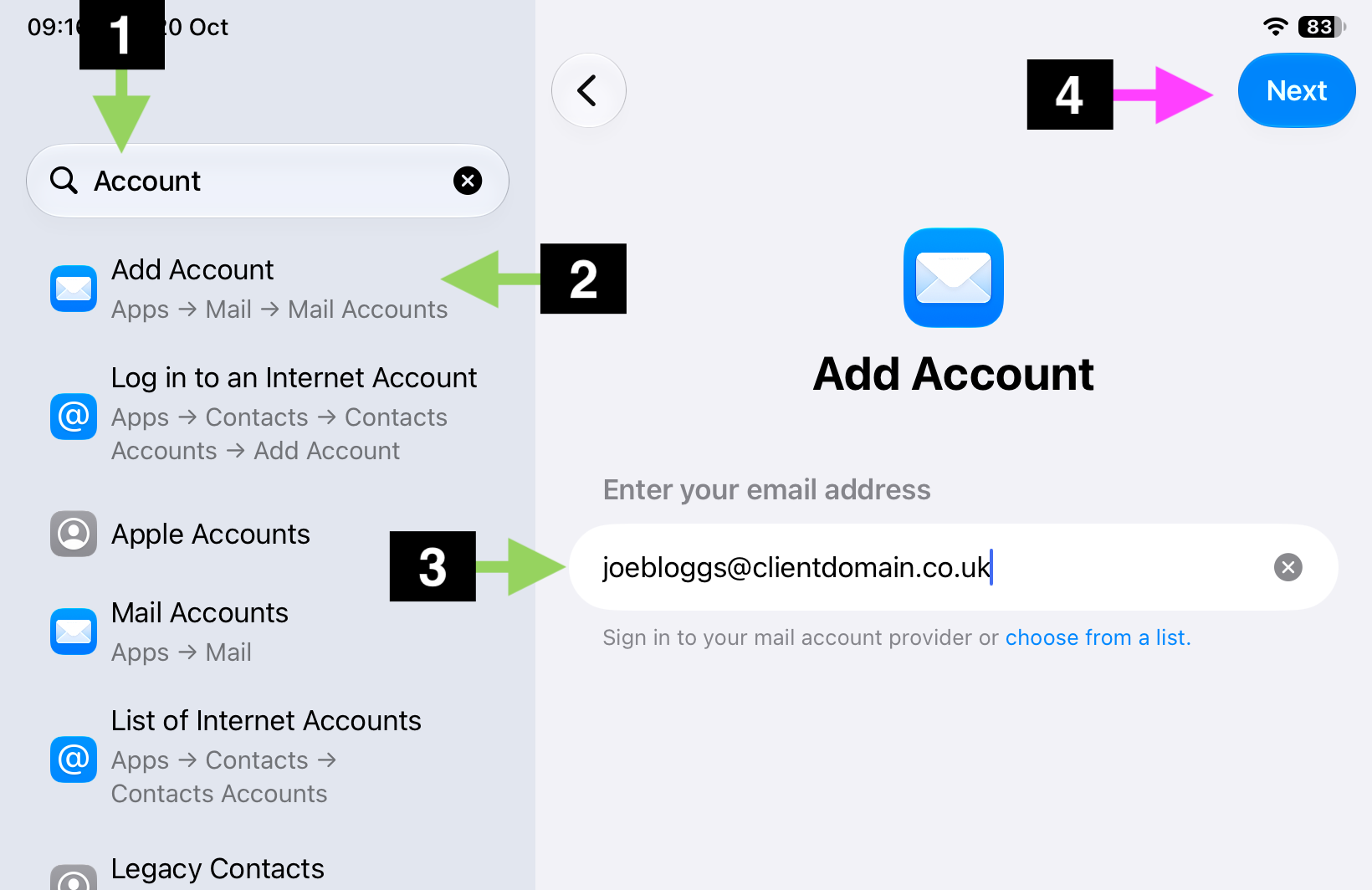
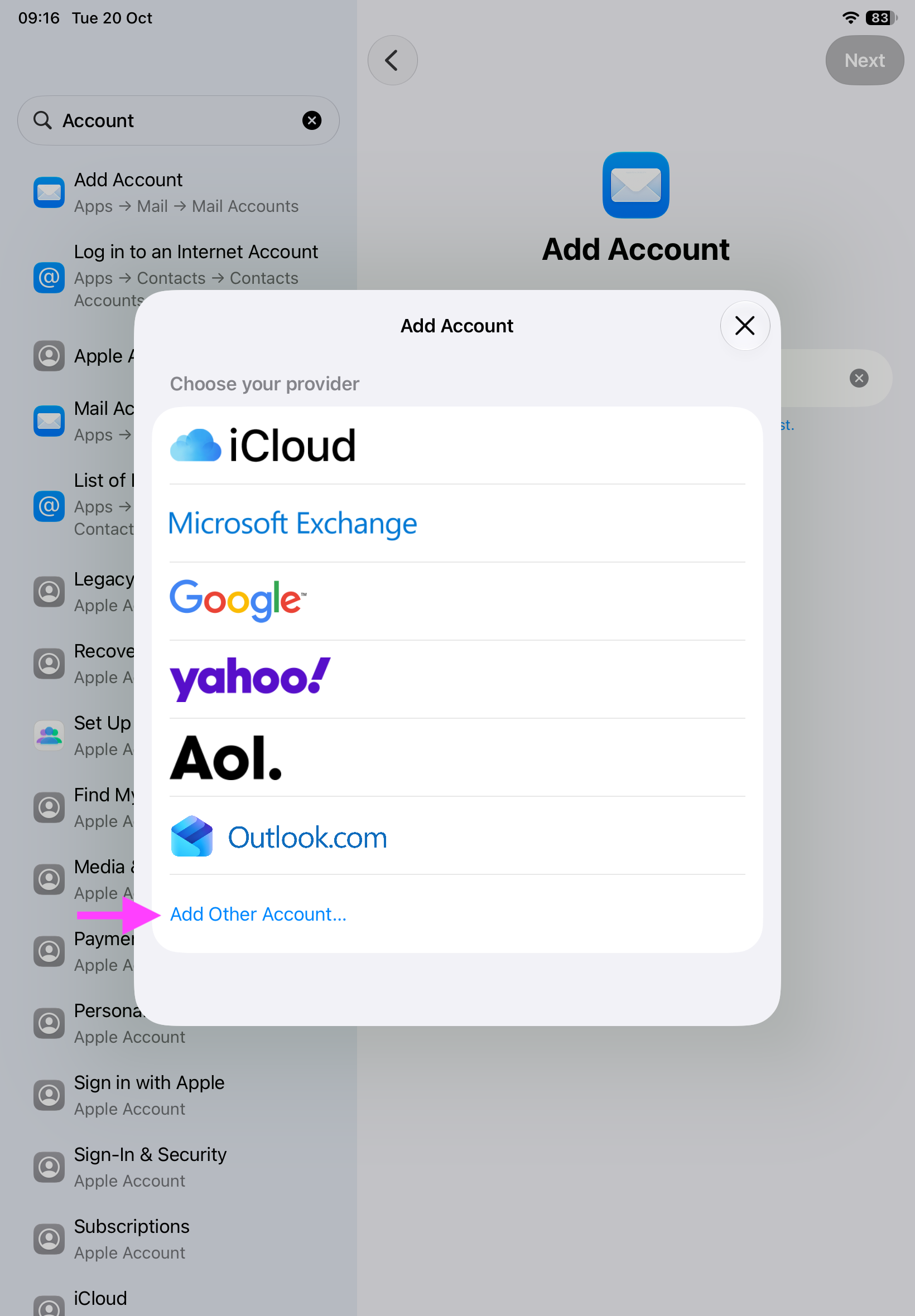
- Choose Add Other Account > Mail Account
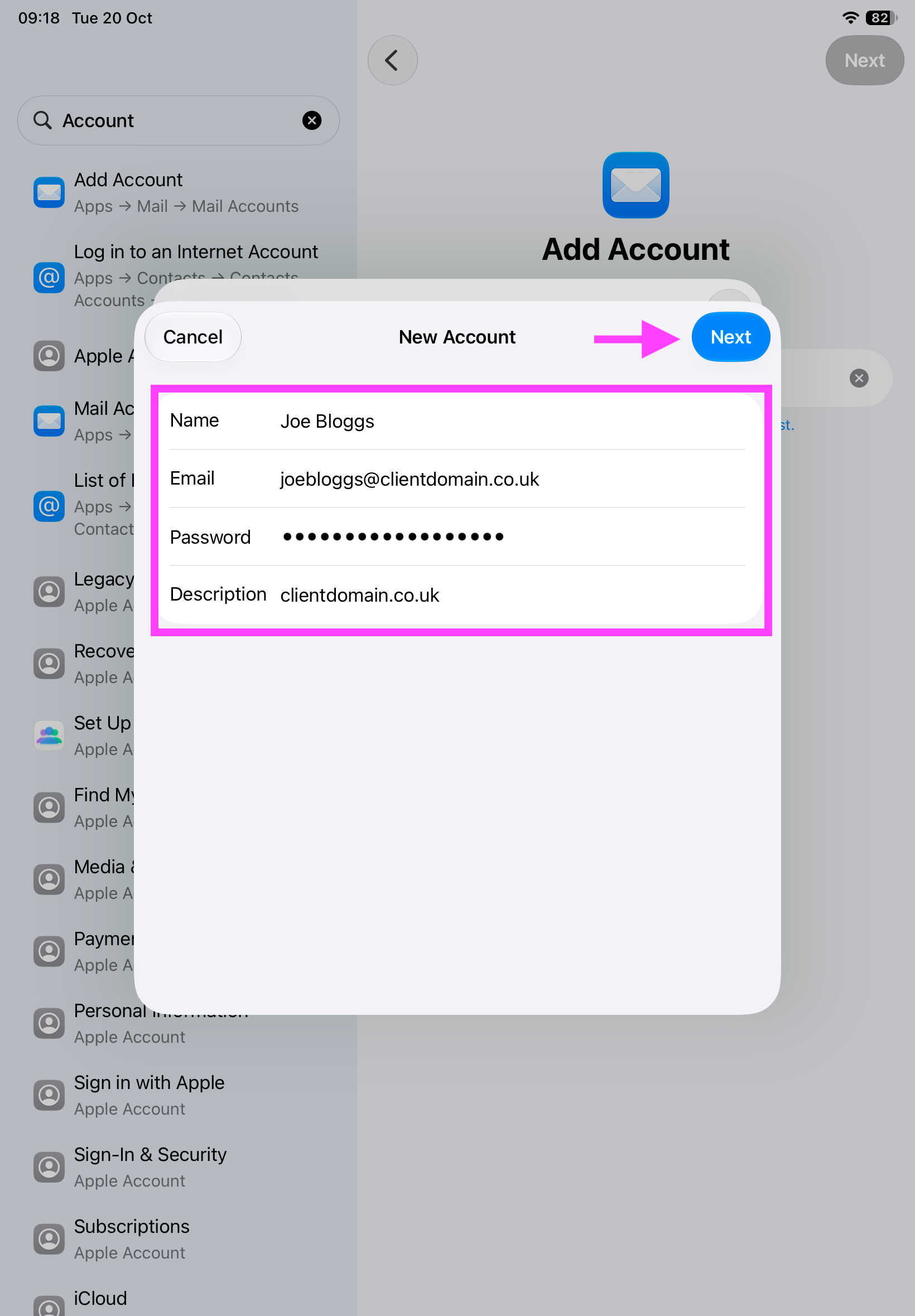
- Enter your name, full email address, mailbox or app password and an account description. Tap Next.
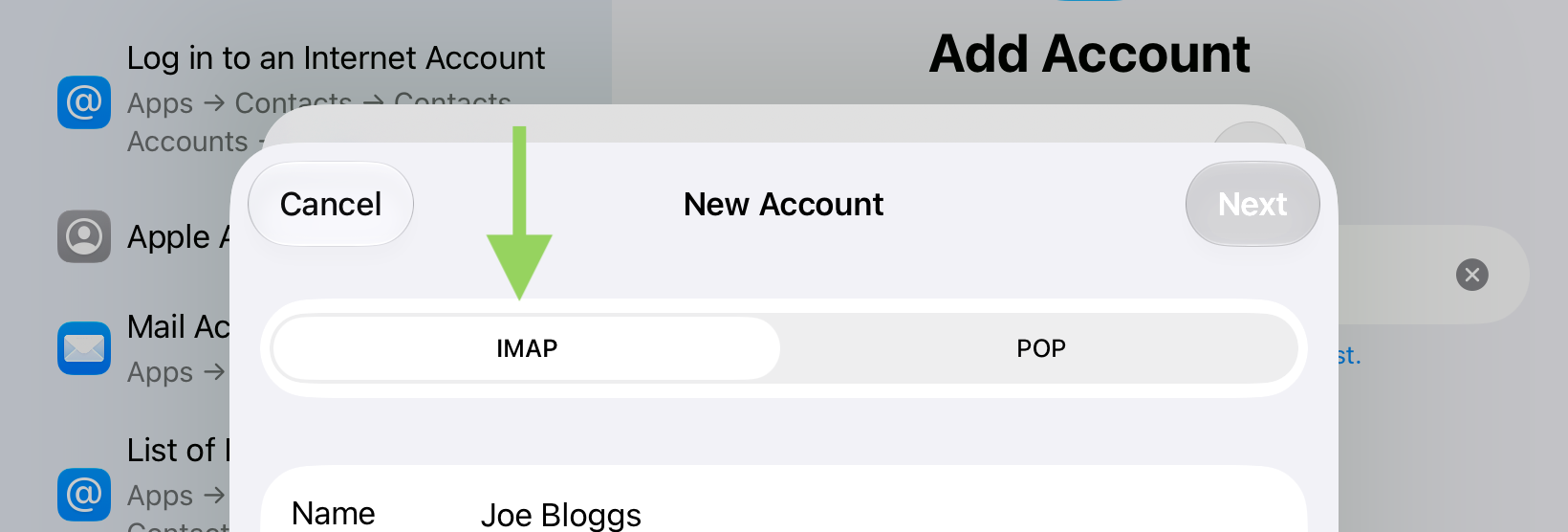
- Allow Mail to look for your settings. If manual setup is needed, select IMAP.
- Under Incoming Mail Server, enter your custom mail hostname (e.g.
mail.clientdomain.co.uk), full email address as the username, and password. Scroll down to Outgoing Mail Server.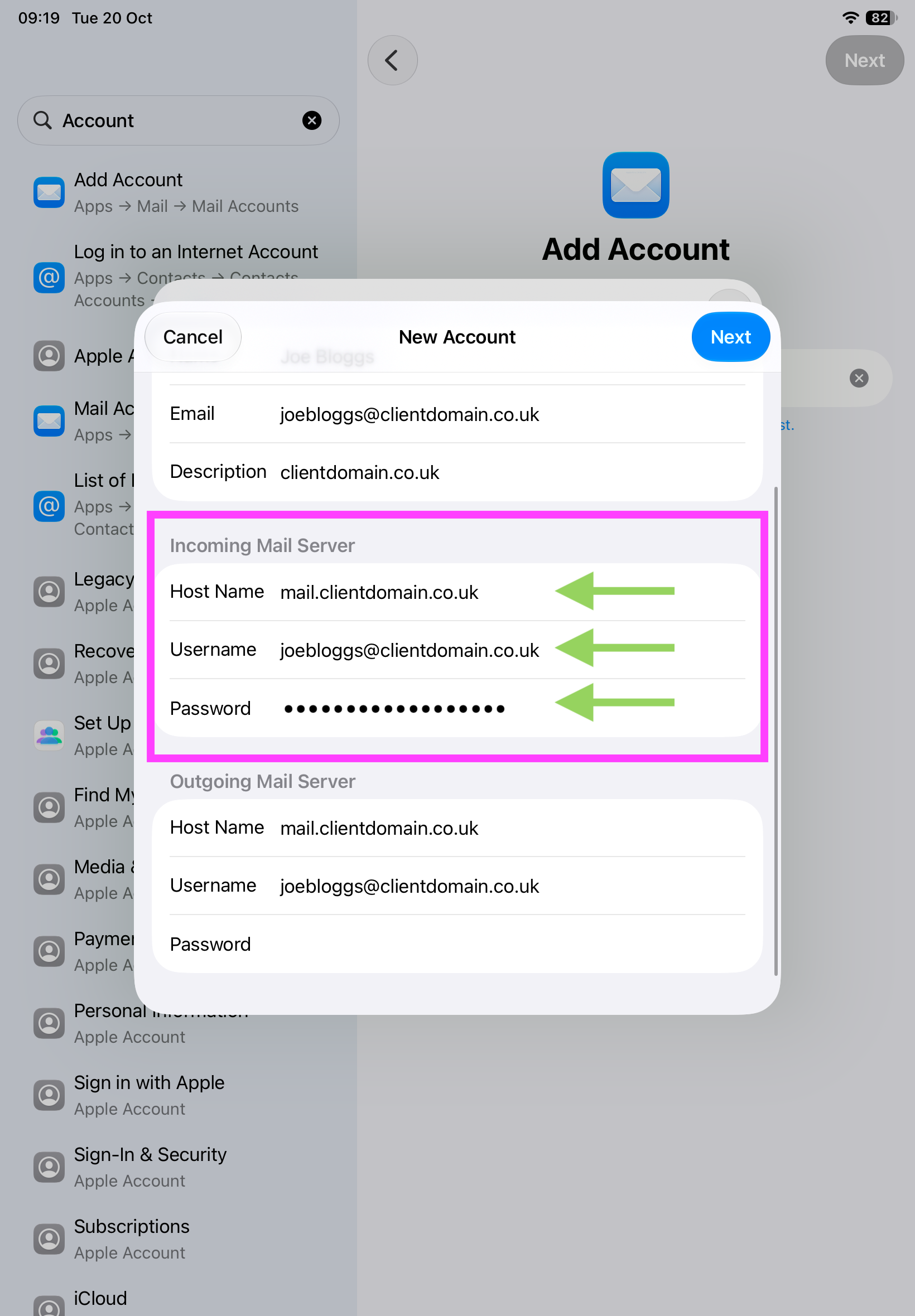
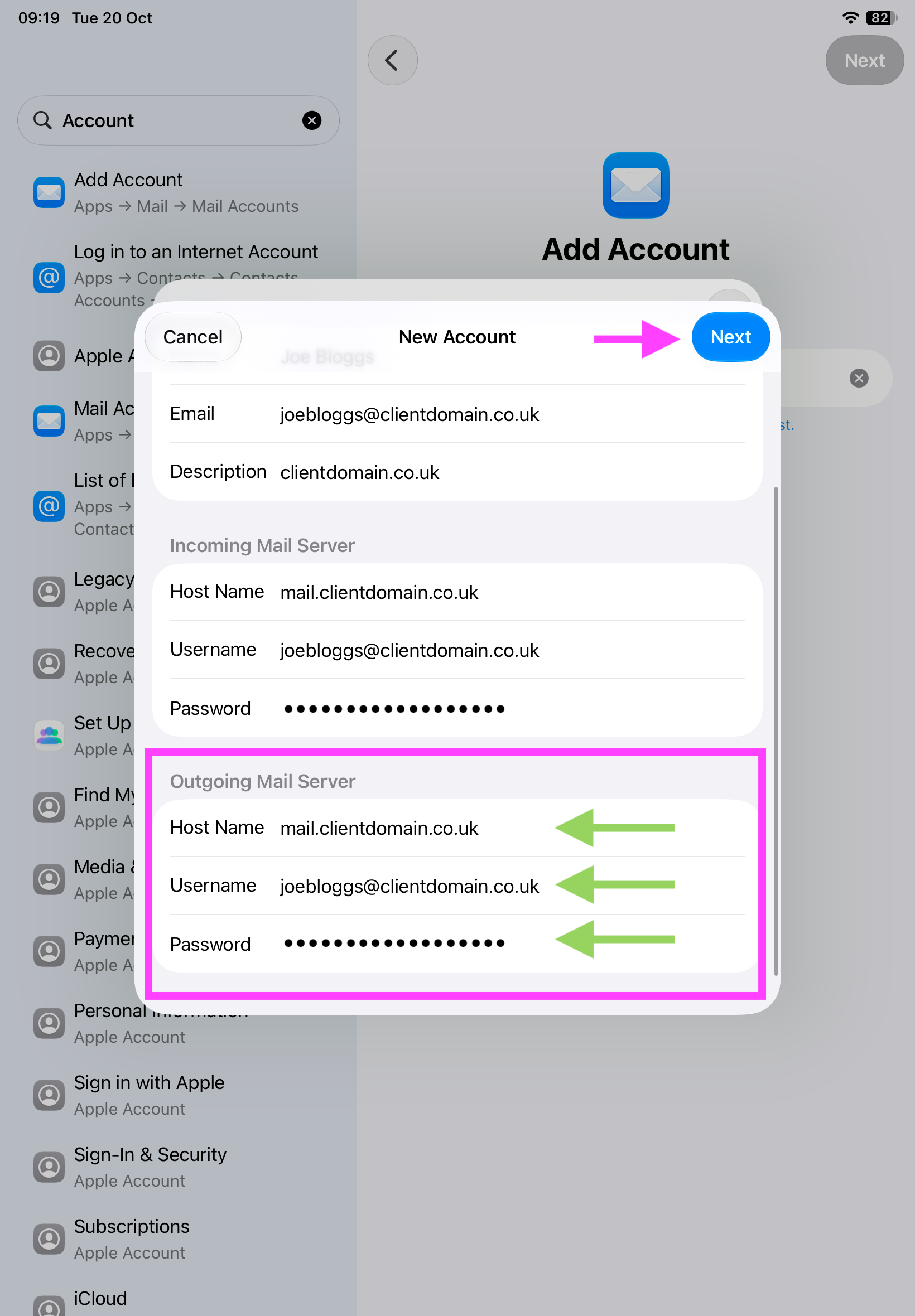
- For Outgoing Mail Server, enter the same hostname, full email address and password. Do not leave outgoing credentials blank, even if the fields say optional. Then tap Next.
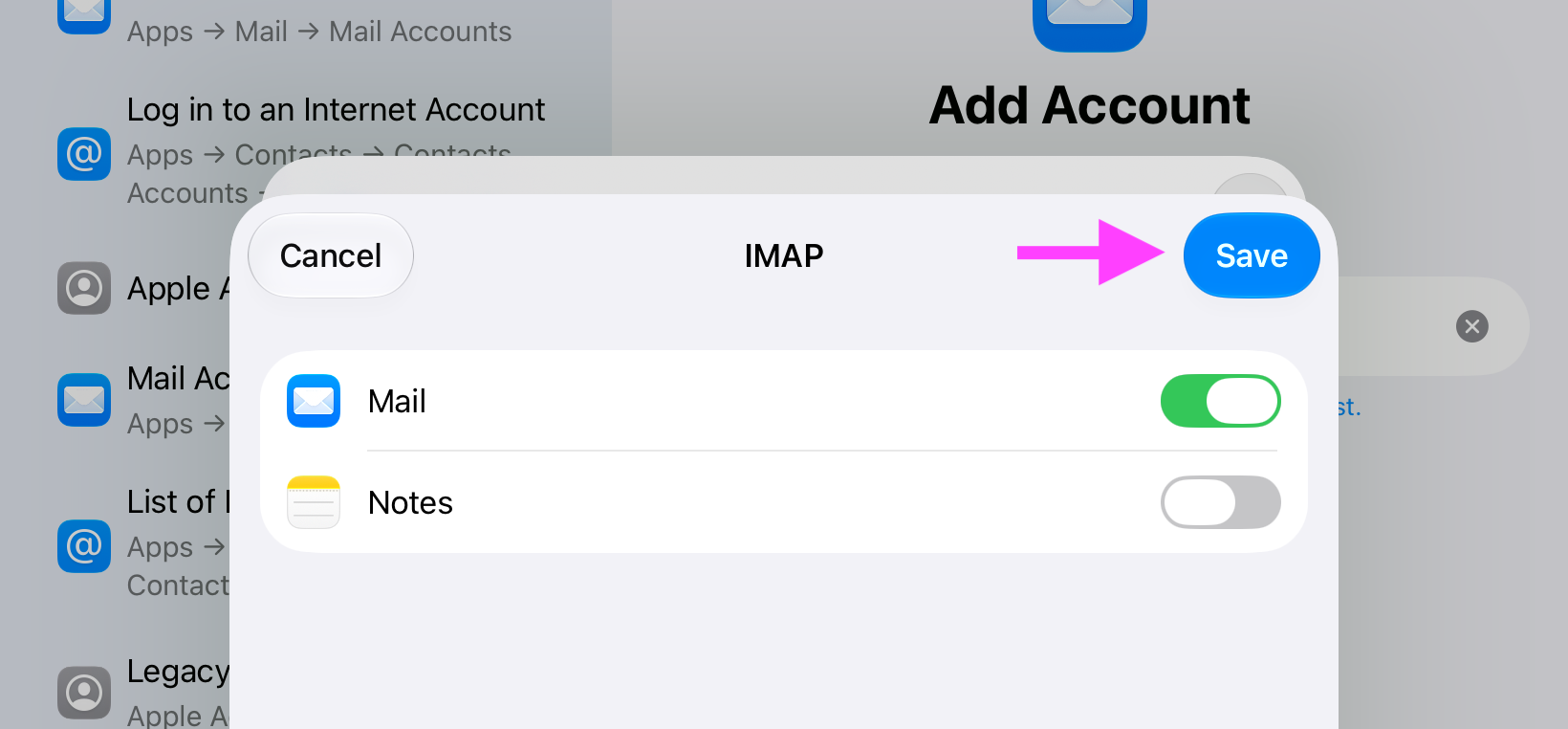
- Tap Next to verify, tap Save. Do not accept an unencrypted connection or bypass a certificate warning.
If verification cannot complete securely or the required settings cannot be changed, contact support. Do not turn off encryption.
Test and troubleshoot
Open Mail and let the folders synchronise. Send a message to another address you can access, then reply to it. This IMAP setup synchronises email, not server calendars or contacts.
Check incoming port 993 and outgoing port 587. Sending requires the full email address and password in the outgoing settings too. Back up messages stored only on your iPad before removing an existing account.
Contact us through the Client Management Portal with your iPadOS version and error message. Never send your password.
